Uninstall & reset
Uninstall TranslucentTB and reset the taskbar
Uninstalling TranslucentTB takes one click in Settings, and the normal taskbar comes back on its own. This page covers every install type, what gets left behind, and what to do if the taskbar stays transparent.
On this page
Short answer
How do I uninstall TranslucentTB?
Open Settings › Apps › Installed apps, find TranslucentTB, click ⋯ › Uninstall. Or run:
winget uninstall CharlesMilette.TranslucentTBFor the portable version, right-click the tray icon, choose Exit, and delete its folder.
Want to keep it, just reset it?
Three different "resets" are often confused:
| You want to | Do this | What changes |
|---|---|---|
| Fix a taskbar that is stuck in the wrong look | Press Ctrl+Alt+Shift+F1 (2026.2 and later), or tray › Advanced › Reset dynamic state | TranslucentTB re-detects open windows, Start, Search and Task View. Settings are untouched. |
| Go back to default settings | Tray › Advanced › Return to default settings | Every look goes back to the defaults; rules, ignored windows and hidden options are cleared too. The file is rewritten when you exit TranslucentTB or choose Edit settings. |
| Start completely fresh | Exit TranslucentTB, delete settings.json, start it again | The welcome page appears again and a new default file is written. Exit first: TranslucentTB saves its settings on exit, so deleting the file while it runs does not stick. |
Before you reset, consider saving a copy of your settings.json. Where it lives: %LOCALAPPDATA%\Packages\28017CharlesMilette.TranslucentTB_v826wp6bftszj\RoamingState\settings.json For the portable version it sits next to TranslucentTB.exe.
Turn TranslucentTB off without uninstalling
To get Windows' normal taskbar back for a while but keep TranslucentTB installed:
| How long | Do this |
|---|---|
| Until you start it again | Right-click the tray icon and choose Exit. The taskbar returns to Windows' own look at once (we saw this in our test), and your settings are saved. |
| Keep it running, but look normal | Set Desktop to Normal and turn off the other states, or set each one to Normal. TranslucentTB keeps running but hands the taskbar back to Windows. |
| Stop it from starting with Windows | Uncheck Open at boot in the tray menu, or turn TranslucentTB off in Settings › Apps › Startup. See stop it from starting. |
Uninstall from Settings (Store, winget, App Installer)
Open Installed apps
Press Win+I and go to Apps › Installed apps. On Windows 10 it is Apps › Apps & features.
You can also right-click TranslucentTB in Start, or search for it, and choose Uninstall:
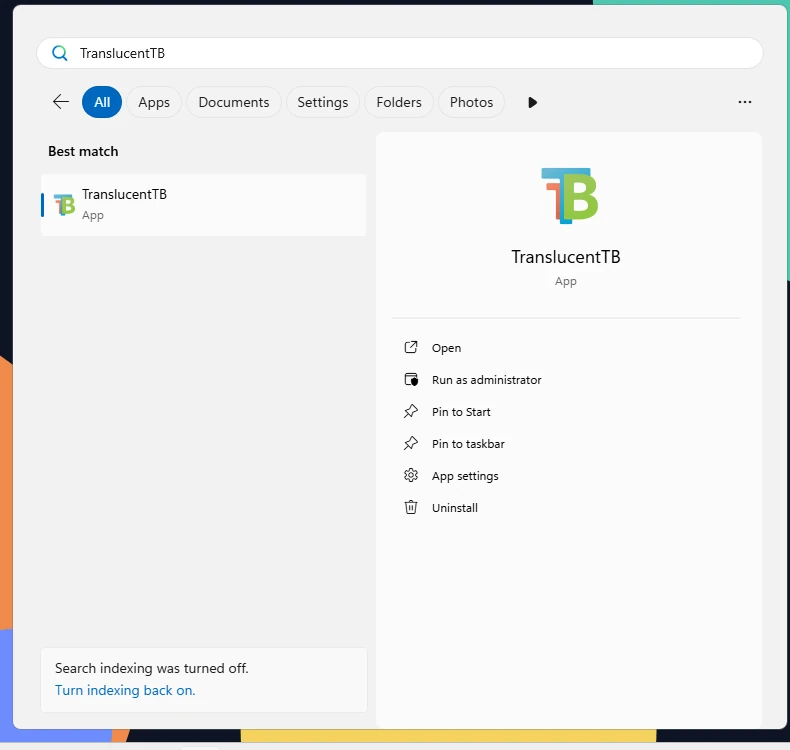
Real screenshot · TranslucentTB 2026.2 · Windows build 26100Start menu search after installing: TranslucentTB with Open, App settings and Uninstall. How this was captured
Captured October 29, 2026 on Windows build 26100 in our hands-on test; only cropped and resized.
Uninstall TranslucentTB
Search for "TranslucentTB", click ⋯ (or the entry on Windows 10) and choose Uninstall. You can also right-click TranslucentTB in the Start menu and pick Uninstall.
Expect a short blink
On Windows 11 22H2 and later, the taskbar and desktop icons disappear for a second. That is intended, see below.
Why Explorer restarts when you uninstall
On the Windows 11 XAML taskbar, TranslucentTB runs a helper, ExplorerTAP.dll, inside explorer.exe. A DLL that Explorer has loaded cannot be removed while Explorer runs. Since 2026.1 the helper listens for the package being uninstalled, and since 2026.2 also for it being updated. When that happens it ends Explorer, Windows starts a fresh one without the DLL, and the default taskbar is back.
We saw this happen in our Windows test: Explorer's process ID changed from 7220 to 3236 when we removed the package while TranslucentTB was running, and the taskbar came back in Windows' own look.
Before uninstalling: TranslucentTB running with a red opaque taskbar.

Ten seconds after Remove-AppxPackage: Explorer was restarted (new process ID) and the taskbar is back to normal.

How these were captured
Captured October 29, 2026 on Windows build 26100 in our hands-on test; only cropped and resized. Settings used:
{ "desktop_appearance": { "accent": "opaque", "color": "#B42318FF" } }Uninstall from the command line
winget uninstall CharlesMilette.TranslucentTBIf you installed from the Store, the Store ID works too: winget uninstall 9PF4KZ2VN4W9.
Get-AppxPackage *TranslucentTB* | Remove-AppxPackageThis removes it for your account. To remove it for every account on the PC, run an elevated PowerShell:
Get-AppxPackage -AllUsers *TranslucentTB* | Remove-AppxPackage -AllUserschoco uninstall translucenttb
Get-AppxPackage *TranslucentTB* | Remove-AppxPackageThe Chocolatey package ships an install script but no uninstall script, so choco uninstall only removes Chocolatey's record. The second command removes the app itself.
scoop uninstall translucenttb
scoop uninstall -p translucenttbExit TranslucentTB from the tray first. The first command keeps your settings.json in Scoop's persist folder; -p deletes it too.
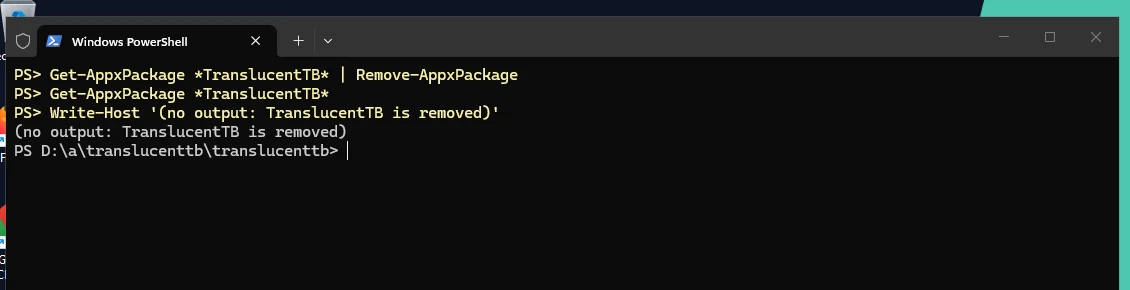
How this was captured
Captured October 29, 2026 on Windows build 26100 in our hands-on test; only cropped and resized.
Remove the portable version
Exit TranslucentTB
Right-click the tray icon and choose Exit. On the XAML taskbar the helper notices TranslucentTB has ended and puts the default taskbar back.
Delete the folder
Delete the folder you unzipped. It holds
TranslucentTB.exe, its DLLs and yoursettings.json.Delete the temp copies and logs
Press Win+R, run
%TEMP%\TranslucentTBand delete the folder. It holds the copies ofExplorerTAP.dllandExplorerHooks.dllthat were loaded into Explorer, plus log files. If Windows says a file is in use, Explorer still has the DLL loaded: restart Explorer (below) or sign out, then delete it.Remove your startup shortcut
If you added one, run
shell:startupand delete the TranslucentTB shortcut.
What is left behind
TranslucentTB keeps its files in a small number of places. We also searched its source for registry writes and found none: it does not store settings in the registry.
| Item | Installed versions | Portable |
|---|---|---|
| settings.json | …\Packages\28017CharlesMilette.TranslucentTB_v826wp6bftszj\RoamingState, deleted with the package | Next to TranslucentTB.exe; delete it yourself |
| Logs and DLL copies | …\Packages\28017CharlesMilette.TranslucentTB_v826wp6bftszj\TempState, deleted with the package | %TEMP%\TranslucentTB; delete it yourself |
| Start with Windows | Startup task inside the package, removed with it | Your shell:startup shortcut |
| Startup registry fix | If you applied the EnableFullTrustStartupTasks policy values from Open at boot, they stay. They only allow startup tasks and are harmless; delete them only if you know nothing else needs them. | |
| Runtime packages | Microsoft.VCLibs.140.00 and Microsoft.UI.Xaml.2.8 stay installed. Other apps use them; leave them. | |
The full package path is %LOCALAPPDATA%\Packages\28017CharlesMilette.TranslucentTB_v826wp6bftszj
Taskbar still transparent after uninstalling?
The look belongs to Explorer, not to TranslucentTB's files. A fresh Explorer always starts with the default taskbar. Restart it:
Press Ctrl+Shift+Esc, find Windows Explorer in the Processes list, right-click it and choose Restart.
taskkill /f /im explorer.exe
start explorer.exeSigning out and back in, or restarting the PC, does the same. If the taskbar is still transparent after that, something else is styling it: check for Windhawk mods, StartAllBack or ExplorerPatcher settings. See conflicts with other taskbar tools.
Clean reinstall
Back up settings.json (optional)
Copy it somewhere outside the package folder, because uninstalling deletes it.
Uninstall
Use any method above. On Windows 11, wait until the taskbar comes back after the blink.
Install again
Follow the install guide. Before 2026.1, an immediate reinstall could fail because Explorer still held the old DLL; current versions restart Explorer to avoid that. If you still see "TranslucentTB was recently updated. Please restart Windows to start using the latest version.", restart Explorer or the PC.
Restore your settings
Open tray › Advanced › Edit settings, paste your saved file, and save. TranslucentTB reloads it automatically. Check it first with the settings validator.
FAQ
Does uninstalling TranslucentTB delete my settings?
settings.json. Back it up first if you want it. The portable version's settings stay in its folder until you delete it.Why did my taskbar and desktop icons flash when I uninstalled?
How do I stop TranslucentTB without uninstalling it?
I can't find TranslucentTB in Installed apps. How do I remove it?
scoop uninstall translucenttb. To check for a package version, run Get-AppxPackage *TranslucentTB* in PowerShell.Will uninstalling bring back my taskbar color?
Keep going
Something wrong or out of date? Email hello@translucenttb.dev and we will fix it.