User guide
TranslucentTB documentation
TranslucentTB has no official manual beyond a README and a configuration page. This guide covers the whole app, start to finish, for version 2026.2. Each section gives the short version and links to a page with the details, all checked against the source code.
On this page
Short answer
How do I use TranslucentTB?
Install it from the Microsoft Store, start it, and click Continue on the welcome page. It then lives in the system tray. Right-click the tray icon to pick a look for each situation (desktop, visible window, maximized window, Start, Search, Task View, battery saver), turn on Open at boot, or edit the settings file.
What TranslucentTB is (start of the tutorial)
TranslucentTB is a free, open-source Windows utility that changes the background of the taskbar: clear, blurred, acrylic or a solid color of your choice, on Windows 10 (version 1903 and later) and Windows 11. It can switch looks on its own, for example clear on the desktop and frosted when a window is maximized. It is maintained by the TranslucentTB Open Source Developers and licensed under GPLv3. The source is on GitHub.
It is a tray app with no main window. Everything happens through the tray icon's menu and one settings file. On Windows 11 it runs a small helper inside Explorer to reach the taskbar; How it works explains why.
1. Install it
There are four official ways: the Microsoft Store (recommended, updates itself), winget (winget install CharlesMilette.TranslucentTB), the .appinstaller file from GitHub, and a portable zip that only runs on Windows 11. All are the same build from the same developers. The Store, winget and App Installer routes install the same package and share one settings folder.
2. First run
On first start TranslucentTB shows a Welcome to TranslucentTB! window with three links (edit the configuration file, join the Discord server, donate on Liberapay) and two buttons:
- Continue writes a default settings.json and shows a notification: "TranslucentTB lives in the system tray. Right-click on the tray icon to change settings, set the app to open at boot, view about information, exit the app, etc."
- Exit closes the app and deletes the settings file, so the welcome page appears again next time.
The defaults give a fully clear taskbar on the desktop and with windows open or maximized (both window states start turned off), and Windows' own look while Task View is open. If you can't find the icon, look in the tray overflow (the ^ arrow) and drag it onto the taskbar.
Desktop clearWindow open desktop look (state off)Maximized desktop look (state off)Task View Windows' look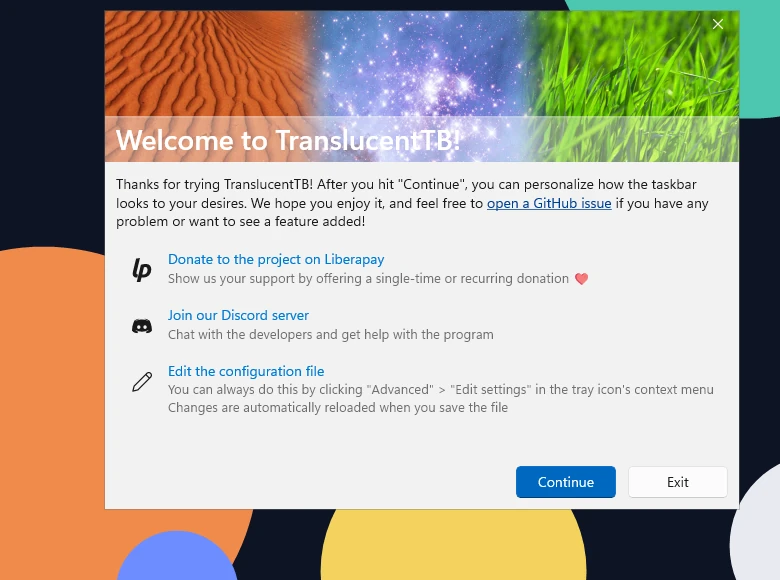
How this was captured
Captured October 29, 2026 on Windows build 26100 in our hands-on test; only cropped and resized.
3. The tray menu
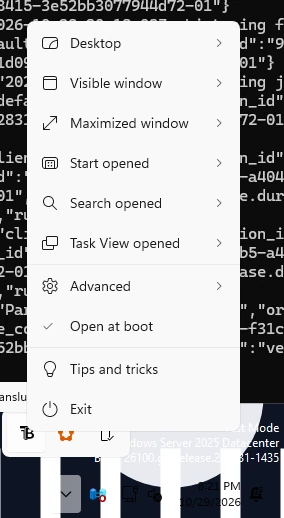
Right-click the icon. The menu has one submenu per state (Desktop, Visible window, Maximized window, Start opened, Search opened, Task View opened, and Battery saver on PCs with a battery), each with Enabled, the five looks, Accent Color and the border or peek toggle. Below them are Open at boot, Advanced (edit settings, logs, reset), Tips and tricks and Exit.
Two habits save trouble: click Exit rather than ending the process, because that is when tray changes are saved; and if the taskbar gets stuck in the wrong look, press Ctrl+Alt+Shift+F1 (2026.2 and later) to reset the dynamic state.
Every item is explained on Tray menu & shortcuts.
How this was captured
Captured October 29, 2026 on Windows build 26100 in our hands-on test; only cropped and resized.
4. The five looks
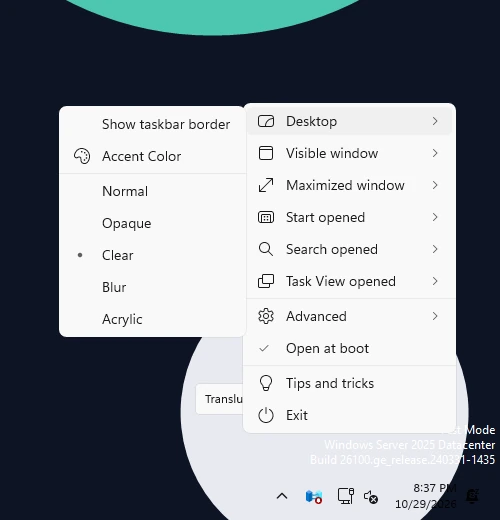
Each state uses one accent: normal (Windows' own look), opaque (solid color, alpha ignored), clear (your color, see-through), blur (adjustable on Windows 11 22H2 and later) or acrylic (frosted). Colors are written #RRGGBBAA, alpha last, so #00000000 is invisible.
normalopaqueclearbluracrylicDetails, Windows-version support and a color converter: Appearance modes.
How this was captured
Captured October 29, 2026 on Windows build 26100 in our hands-on test; only cropped and resized.
5. The seven states
TranslucentTB checks each taskbar against a fixed order and uses the first state that applies: battery saver, Task View, Aero Peek (desktop look), Start, Search, maximized window, visible window, then the desktop as the fallback. States you turn off are skipped. Each monitor's taskbar is decided on its own.
The order, what counts as a window, multi-monitor behavior and a simulator: Dynamic modes.
6. settings.json
Everything in the tray menu, plus a few hidden options, lives in one JSON file. For packaged installs it is at:
%LOCALAPPDATA%\Packages\28017CharlesMilette.TranslucentTB_v826wp6bftszj\RoamingState\settings.json
Open it with Advanced › Edit settings. TranslucentTB reloads it 200 ms after you save. Be careful: one invalid value (a capitalized "Clear", a quoted "true") makes the app show an error, ignore the whole file and use defaults.
7. Per-app window rules
The Visible window and Maximized window states can have rules that give specific apps their own look, matched by window class, window title or process name, with an optional look for when that window is not focused. A separate ignored_windows list makes TranslucentTB pretend some windows do not exist, for overlays and widgets that would otherwise change the taskbar. Rules are file-only; see Window rules.
8. Start with Windows
Check Open at boot in the tray menu. Packaged installs use a Windows startup task; the portable version needs a shortcut in your Startup folder. If the item is grayed out, a policy or a debloat script has blocked startup apps. The fix, including the registry values from the README, is on Open at boot.
9. Updates
| Installed via | How it updates |
|---|---|
| Microsoft Store | Automatically in the background, like other Store apps. |
| App Installer file | Checks GitHub every 24 hours on launch, plus a background task, and installs new versions. |
| winget | winget upgrade CharlesMilette.TranslucentTB, or winget upgrade --all. |
| Portable zip | Manually: download the new zip and replace the files. |
After an update you may see "TranslucentTB was recently updated. Please restart Windows to start using the latest version." Explorer still holds the old helper DLL; restarting Windows (or Explorer) clears it. What changed in each version: Releases.
10. When something goes wrong
Most problems fall into a few groups: a Windows feature update broke the helper inside Explorer, another taskbar tool conflicts, settings.json has an error, or startup is blocked. Every error message TranslucentTB can show is listed with its fix on Troubleshooting, and the troubleshooter narrows it down for your PC. Version-specific notes: Windows 11, Windows 10. Bugs in TranslucentTB itself belong in its GitHub issues.
All guide pages
FAQ
Is there an official TranslucentTB manual?
Does TranslucentTB have a settings window?
How much memory and CPU does TranslucentTB use?
Which TranslucentTB version is current?
Keep going
Something wrong or out of date? Email hello@translucenttb.dev and we will fix it.