Docs
Dynamic modes: how TranslucentTB picks the taskbar look
TranslucentTB can give the taskbar a different look when a window is open, when one is maximized, and while Start, Search or Task View is open. Each of these is a "state". When several are true at once, a fixed order decides. Here is that order, read from the 2026.2 source, and a simulator to try it.
On this page
Short answer
Which state wins when two apply?
The first match in this list, checked separately for each monitor's taskbar: battery saver › Task View › Aero Peek (desktop look) › Start › Search › maximized window › visible window › desktop. A state that is turned off is skipped. So with the defaults, opening Start over a maximized window keeps the maximized look on Windows 11 (Start's state is off there) but switches to Windows' normal look on Windows 10.
The seven states
Each state has its own accent and color, plus the taskbar line and peek button toggles. In the tray menu each one is a submenu; in settings.json each is a key ending in _appearance.
| State | Used when | Scope | Can be off? |
|---|---|---|---|
| Desktop | Nothing else applies: no counted window on that monitor, or Aero Peek is showing the desktop | Per monitor | No, it is the fallback |
| Visible window | At least one normal window is on that monitor | Per monitor | Yes (off by default) |
| Maximized window | A maximized window is on that monitor | Per monitor | Yes (off by default) |
| Start opened | The Start menu is open on that monitor | Per monitor | Yes |
| Search opened | Windows Search is open on that monitor (and Start is not) | Per monitor | Yes |
| Task View opened | Task View (Win+Tab) is open | All taskbars | Yes (on by default) |
| Battery saver | Windows battery saver is on | All taskbars | Yes (off by default) |
What counts as a "window"
The visible and maximized states only count real app windows. From Window::is_user_window and InsertWindow in the source, a window counts when it is:
- visible, not cloaked (hidden windows of suspended Store apps are cloaked), and not minimized;
- a top-level window and not a tool window (floating palettes, notification popups);
- able to take focus, or explicitly shown on the taskbar;
- on the current virtual desktop;
- not a
Windows.UI.Core.CoreWindow(Windows' own shell panels); - not matched by your ignored_windows list.
A window belongs to the monitor Windows reports for it, so a window on your second screen changes only that screen's taskbar. If an app makes your taskbar switch when it shouldn't (an overlay, a widget, a game launcher in the background), add it to ignored_windows.
The priority order
For every taskbar, TranslucentTB walks down this list and stops at the first state that applies. This is TaskbarAttributeWorker::GetConfig, step for step:
- Battery saver, if its state is enabled. It beats everything, so a power-saving look is never overridden.
- Task View, if enabled.
- Aero Peek: while you hover or click "show desktop", the desktop look is used, because you are looking at the desktop. This has no switch.
- Start, if enabled and Start is open on this monitor.
- Search, if enabled and Search is open on this monitor, but only when Start is not. On Windows 11, Start has a search box, so the source checks Start first to avoid treating Start as Search.
- Maximized window, if enabled and a maximized window is on this monitor. If you defined rules, only the top-most maximized window is checked against them.
- Visible window, if enabled and any counted window (normal or maximized) is on this monitor. Its rules are checked against the focused window, and only when no window is maximized on this monitor and the focused window is on this monitor.
- Desktop, always, as the fallback.
Here is the order at work on a real taskbar, from our Windows test on Windows build 26100:
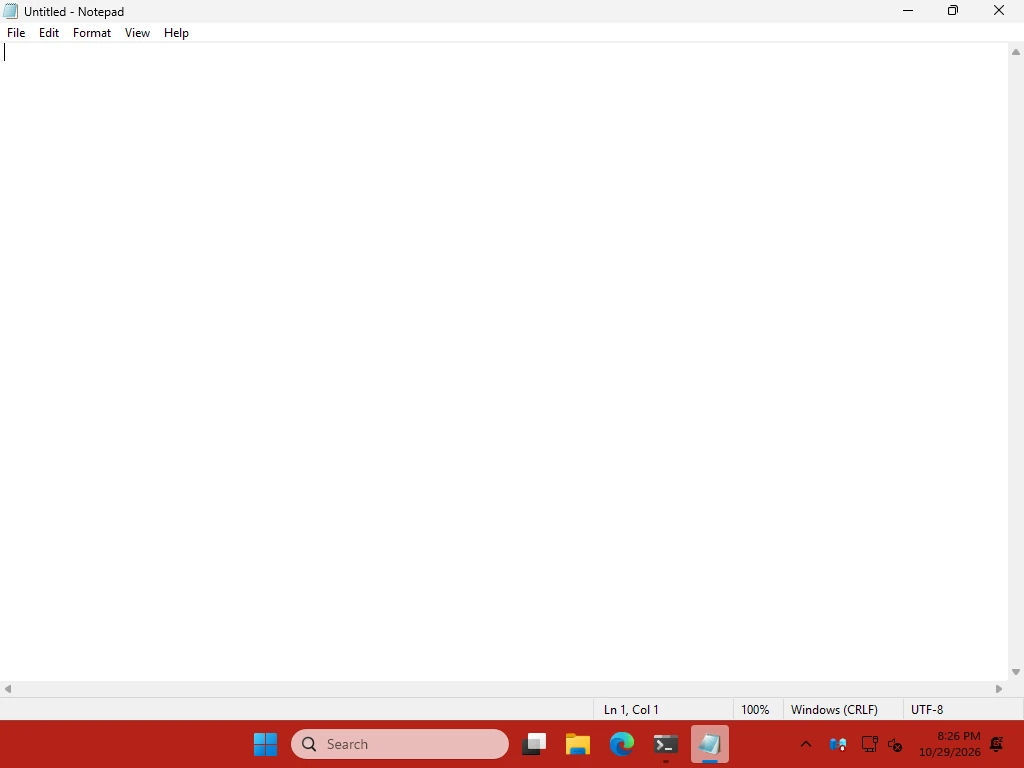
How this was captured
Captured October 29, 2026 on Windows build 26100 in our hands-on test; only cropped and resized. Settings used:
{ "maximized_window_appearance": { "enabled": true, "accent": "opaque", "color": "#B42318FF" } }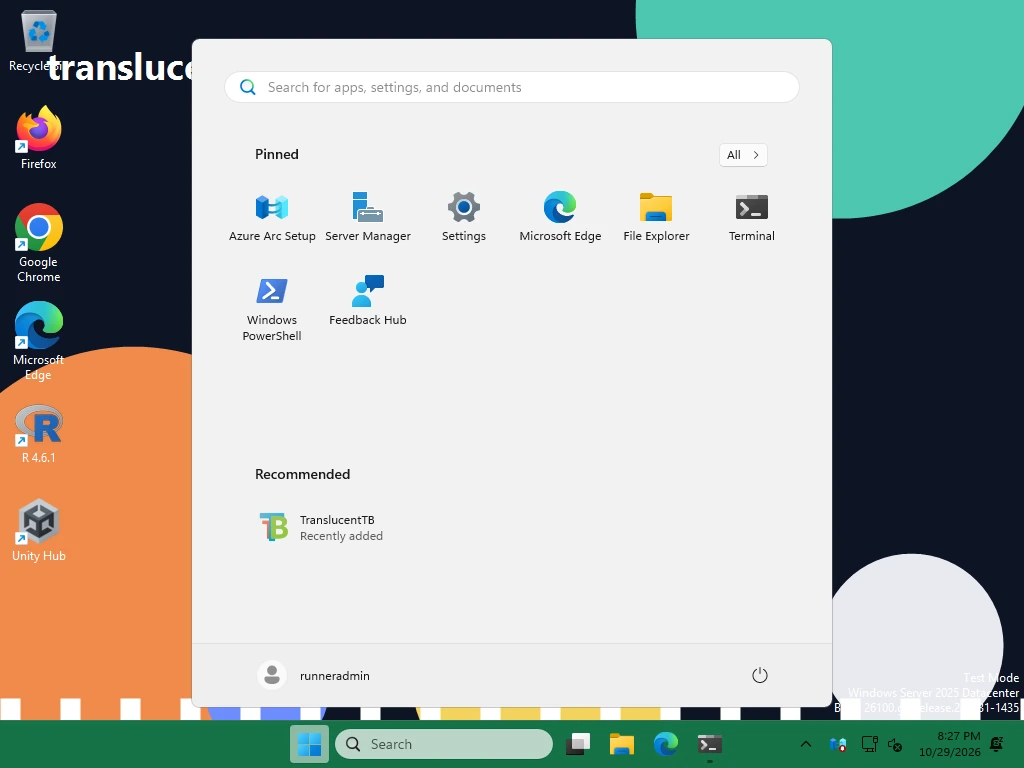
How this was captured
Captured October 29, 2026 on Windows build 26100 in our hands-on test; only cropped and resized. Settings used:
{ "start_opened_appearance": { "enabled": true, "accent": "opaque", "color": "#157347FF" } }Try it: state simulator
Toggle what is happening on one monitor and which states are enabled. The result uses the same logic as the app, with 2026.2's default looks. To try your own looks, use the settings builder.
Desktop
Multiple monitors
TranslucentTB keeps a list of windows per monitor and decides each taskbar on its own. A maximized browser on your left screen makes only the left taskbar acrylic; the right one stays clear. Start and Search are also tracked per monitor. Task View, battery saver and Aero Peek are global: they change every taskbar at once.
Taskbars on extra monitors are found by their own window class (Shell_SecondaryTrayWnd) and get the same treatment as the main one. If a secondary taskbar stops updating, for example after unplugging a screen or waking from sleep, see second monitor not transparent; the reset hotkey Ctrl+Alt+Shift+F1 (2026.2 and later) rebuilds the state without restarting.
Default looks for each state
These are the values in Config.hpp, which the app writes on first run:
| State | enabled | accent | color | show_peek | show_line | blur_radius |
|---|---|---|---|---|---|---|
desktop_appearanceDesktop | always | clear | #00000000 | false | false | 9.0 |
visible_window_appearanceVisible window | false | clear | #00000000 | true | false | 9.0 |
maximized_window_appearanceMaximized window | false | acrylic | #00000000 | true | true | 9.0 |
start_opened_appearanceStart opened | false (Win 11) true (Win 10) | normal | #00000000 | true | true | 9.0 |
search_opened_appearanceSearch opened | false (Win 11) true (Win 10) | normal | #00000000 | true | true | 9.0 |
task_view_opened_appearanceTask View opened | true | normal | #00000000 | false | true | 9.0 |
battery_saver_appearanceBattery saver | false | opaque | #00000000 | true | false | 9.0 |
Out of the box this gives a fully clear taskbar on the desktop and with normal or maximized windows (both window states are off, so the desktop look applies), and Windows' own look while Task View is open. The window states keep their default looks (clear for visible, acrylic for maximized) ready for when you enable them.
We checked the defaults on Windows: after a fresh install, maximizing Notepad and opening Start both left the taskbar clear.
Default settings with Notepad maximized: still clear, because the Maximized window state is off by default.

How these were captured
Captured October 29, 2026 on Windows build 26100 in our hands-on test; only cropped and resized. Settings used:
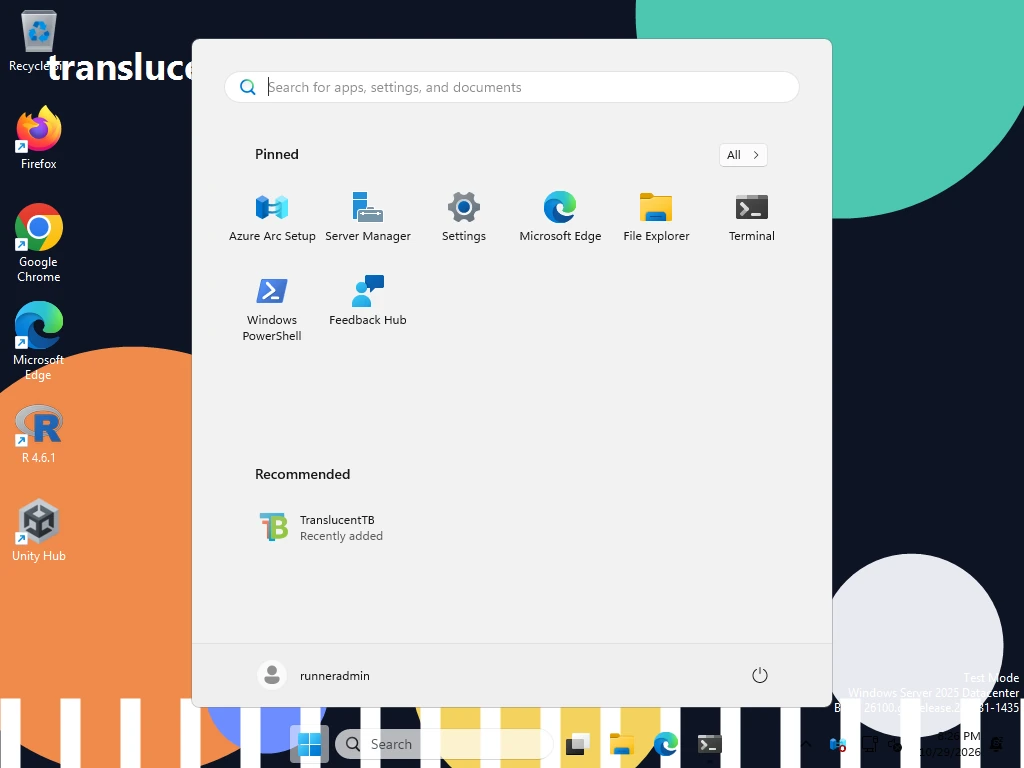
How this was captured
Captured October 29, 2026 on Windows build 26100 in our hands-on test; only cropped and resized.
Why Start and Search are off on Windows 11
The defaults enable Start and Search only when the Windows build is below 22000, so they start disabled on every Windows 11 PC. The source gives no reason. A likely one: on Windows 11 the Start and Search panels float above the taskbar instead of growing out of it, so a separate taskbar look while they are open matters less. You can turn them on from the tray menu (Start opened › Enabled).
Setting states from the tray menu
Right-click the TranslucentTB icon. Each state is a submenu with:
- Enabled (all states except Desktop), to turn it on or off;
- Normal, Opaque, Clear, Blur, Acrylic, the accent (Blur only where your taskbar supports it);
- Accent Color, a color picker with alpha and live preview on the taskbar;
- Show taskbar border (Windows 11) or Show Desktop Peek Button (Windows 10).
The Battery saver submenu only appears on PCs with a battery. Changes apply at once and are saved to settings.json when you click Exit. The full menu is on Tray menu & shortcuts.
FAQ
How do I keep the taskbar transparent when a window is maximized?
Why does my taskbar turn frosted when I maximize a window?
Why doesn't the Start menu change my taskbar on Windows 11?
My taskbar is stuck in the wrong state. How do I reset it?
Can a specific app get its own taskbar look?
Keep going
Something wrong or out of date? Email hello@translucenttb.dev and we will fix it.