Reference
TranslucentTB settings.json reference
Everything TranslucentTB does is stored in one JSON file. This page gives its location, every key with its type and default, and the rules the app uses to read and write it. All of it comes from the TranslucentTB 2026.2 source code, not from guesswork.
On this page
Short answer
Where is the TranslucentTB settings file?
Store, winget and App Installer installs:
%LOCALAPPDATA%\Packages\28017CharlesMilette.TranslucentTB_v826wp6bftszj\RoamingState\settings.json
Portable version: settings.json in the same folder as TranslucentTB.exe. The fastest way in: right-click the tray icon, then Advanced › Edit settings.
Where settings.json is stored
TranslucentTB decides at startup whether it runs as a packaged app (it has a package identity) or as the portable zip. The source (ConfigManager::DetermineConfigPath) then picks one of two folders:
| How you installed it | settings.json | Log files |
|---|---|---|
| Microsoft Store, winget, App Installer file | %LOCALAPPDATA%\Packages\28017CharlesMilette.TranslucentTB_v826wp6bftszj\RoamingState\ | …\28017CharlesMilette.TranslucentTB_v826wp6bftszj\TempState\ |
| Portable zip | The folder that holds TranslucentTB.exe | %TEMP%\TranslucentTB\ |
The three packaged install methods all install the same MSIX package, so they share one folder. Uninstalling the package deletes that folder, settings included. The portable version never touches it.
Checked on Windows build 26100: after installing the 2026.2 package, settings.json appeared at exactly this path (folder listing from our Windows test).
The quickest way to open the file is Advanced › Edit settings in the tray menu:
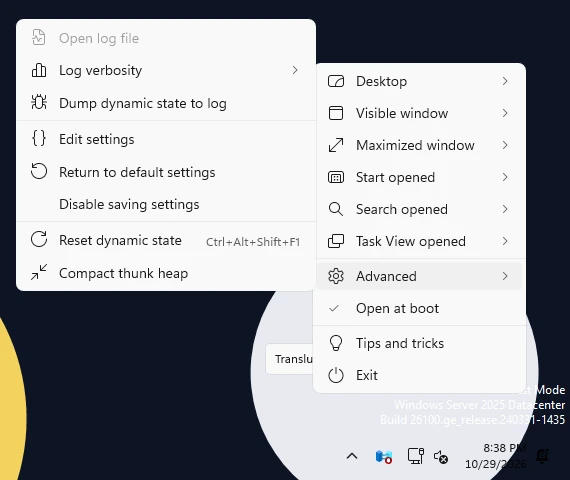
How this was captured
Captured October 29, 2026 on Windows build 26100 in our hands-on test; only cropped and resized.
Open it from PowerShell
notepad "$env:LOCALAPPDATA\Packages\28017CharlesMilette.TranslucentTB_v826wp6bftszj\RoamingState\settings.json"
explorer "$env:LOCALAPPDATA\Packages\28017CharlesMilette.TranslucentTB_v826wp6bftszj\RoamingState"If the folder does not exist, check the package name on your PC:
Get-AppxPackage *TranslucentTB* | Select-Object Name, Version, PackageFamilyNameHow TranslucentTB reads and writes the file
- Created on first run. When you press Continue on the welcome page, TranslucentTB writes a full file with your Windows version's defaults. If you close the welcome page instead, it deletes the file so the welcome page shows again next time.
- Reloaded live. TranslucentTB watches the folder. When
settings.jsonchanges, it waits 200 ms (so editors that save in several steps don't trigger errors) and reloads. You never need to restart it, except for language. - Comments and trailing commas are fine. The file is parsed with RapidJSON using its comments and trailing-commas flags, so
//and/* */comments are accepted. Single quotes, unquoted keys andNaNare not. - Written on Exit, Edit settings and Windows shutdown. Tray menu changes are held in memory. The app saves them when you click Exit, when you click Advanced › Edit settings (it saves first, then opens the file), and when Windows signs out or shuts down. It writes a temporary file and swaps it in, so a crash mid-save does not corrupt the file.
- The header. Every write starts with
// See https://TranslucentTB.github.io/config for more informationand a"$schema"key. The$schemakey is skipped when reading, and gives editors like VS Code autocomplete.
One bad value resets everything
This is the behavior behind most "my settings keep resetting" reports. When TranslucentTB loads the file it starts from defaults and applies your keys one by one. The first invalid value stops the load, and the app throws away everything it read and uses the defaults for every setting.
You will notice, because it shows a warning dialog (and writes the same text to its log). The dialog is titled TranslucentTB version - Error and reads:
TranslucentTB has encountered an error.Failed to deserialize JSON document
Found invalid enum string "Acrylic" while deserializing key "accent"
The last line is the detail: either the parser's own message or a JSON syntax error. It appears at startup and again every time you save a broken file while the app is running. In the log the same error is one line: Failed to deserialize JSON document (Found invalid enum string "Acrylic" while deserializing key "accent"). After you dismiss the dialog, every setting is at its default.
The messages you can get, copied from the parser:
| Detail line in the dialog and log | Typical cause |
|---|---|
Expected bool but found string while deserializing enabled | "true" in quotes. Booleans are bare true/false. |
Expected number but found string while deserializing blur_radius | "9" in quotes. |
Found invalid enum string "Blur" while deserializing key "accent" | Accents and verbosity are lowercase and case-sensitive. |
Found invalid string "000000" while deserializing color | Color missing the #, or not 3, 4, 6 or 8 hex digits. |
Found invalid string "en-us" while deserializing language | Region must be uppercase: en-US. |
Expected object but found array while deserializing … | Wrong bracket type, for example "rules": []. |
A RapidJSON parse error, such as Missing a comma or '}' after an object member. | A JSON syntax error: missing comma, unclosed quote or brace. |
Unknown keys are not errors. A misspelled key such as "blur_raduis" is silently ignored: no dialog, just the line Unknown key found in JSON: blur_raduis in the log at the info level. Because the default log level is warn, you will not see that line unless you raise verbosity.
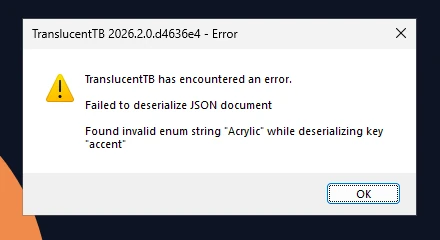
How this was captured
Captured October 29, 2026 on Windows build 26100 in our hands-on test; only cropped and resized. Settings used:
{ "desktop_appearance": { "accent": "Acrylic", "color": "#00000000" } }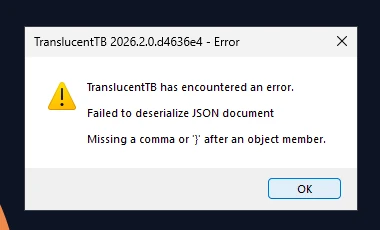
How this was captured
Captured October 29, 2026 on Windows build 26100 in our hands-on test; only cropped and resized. Settings used:
{ "desktop_appearance": { "accent": "clear", "color": "#00000000" } "oops": 1 }All keys at a glance
| Key | Type | Default | Notes |
|---|---|---|---|
desktop_appearance | appearance | clear, #00000000 | Always active. No enabled. |
visible_window_appearance | appearance + enabled + rules | off, clear | A normal window is open. |
maximized_window_appearance | appearance + enabled + rules | on, acrylic | A window is maximized. |
start_opened_appearance | appearance + enabled | normal; on for Win 10, off for Win 11 | Start menu open. |
search_opened_appearance | appearance + enabled | normal; on for Win 10, off for Win 11 | Search open. |
task_view_opened_appearance | appearance + enabled | on, normal | Task View open. |
battery_saver_appearance | appearance + enabled | off, opaque | Battery saver on. |
ignored_windows | object of string arrays | empty | window_class, window_title, process_name. |
hide_tray | bool, optional | not set (icon shown) | Hides the only menu. Careful. |
disable_saving | bool | false | Stop the app writing the file. |
verbosity | string | "warn" | trace debug info warn err critical off |
language | string, optional | not set (Windows language) | BCP-47, e.g. "de-DE". |
use_xaml_context_menu | bool, optional | not set (automatic) | Force the modern or classic tray menu. |
copy_dlls | bool, optional | not set (true) | Copy Explorer helper DLLs before loading. |
Optional keys that are "not set" are left out of the file the app writes. Add them yourself if you need them.
The appearance object
Every state, and every rule, uses the same five fields. A field you leave out keeps its default.
"maximized_window_appearance": {
  "enabled": true,          // only on states that can be turned off
  "accent": "acrylic",      // normal | opaque | clear | blur | acrylic
  "color": "#00000000",     // #RRGGBBAA, alpha last
  "show_peek": true,        // Windows 10 Aero Peek button
  "show_line": true,        // Windows 11 taskbar border line
  "blur_radius": 9.0,       // blur accent only, 0 to 750
  "rules": {                // visible and maximized states only
    "window_class": {},
    "window_title": {},
    "process_name": {}
  }
}
accent
One of "normal", "opaque", "clear", "blur" or "acrylic", all lowercase. Anything else is an error that resets the file. What each looks like, and which Windows versions support blur, is on Appearance modes.
color
A hex string starting with #: #RGB, #RGBA, #RRGGBB or #RRGGBBAA. Alpha comes last. #00000000 is transparent black, #000000FF is solid black. If you leave out alpha, it is FF (opaque). The app always writes 8 uppercase digits. With normal the color is not used, and with opaque the alpha is ignored. More, plus a converter for ARGB values: Color format.
blur_radius
A number (not a string), default 9.0. It only matters with the blur accent on the Windows 11 XAML taskbar (22H2 and later), where TranslucentTB passes blur_radius ÷ 3 as the Gaussian blur amount, so the default is a soft 3-pixel blur. Values above 750 are clamped to 750 (a Direct2D limit, per the source comment). Windows 10's blur has a fixed strength and ignores it.
show_peek
true or false. Shows or hides the Aero Peek "show desktop" button at the far right of the taskbar, per state. It only exists on the classic taskbar (Windows 10, or Windows 11 with a classic-taskbar tool). When hidden, the button is made almost fully transparent but still works if you click its corner.
show_line
true or false. Shows or hides the thin border line along the top of the Windows 11 taskbar. Hide it for a seamless clear taskbar. It has no effect on Windows 10.
enabled
true or false on every state except the desktop. A disabled state is skipped, and TranslucentTB falls through to the next state in the priority order. enabled in desktop_appearance or inside a rule is ignored.
The seven states
Which state wins when several apply, and how each is detected, is on Dynamic modes. The defaults below come from Config.hpp.
| State | enabled | accent | color | show_peek | show_line | blur_radius |
|---|---|---|---|---|---|---|
desktop_appearanceDesktop | always | clear | #00000000 | false | false | 9.0 |
visible_window_appearanceVisible window | false | clear | #00000000 | true | false | 9.0 |
maximized_window_appearanceMaximized window | false | acrylic | #00000000 | true | true | 9.0 |
start_opened_appearanceStart opened | false (Win 11) true (Win 10) | normal | #00000000 | true | true | 9.0 |
search_opened_appearanceSearch opened | false (Win 11) true (Win 10) | normal | #00000000 | true | true | 9.0 |
task_view_opened_appearanceTask View opened | true | normal | #00000000 | false | true | 9.0 |
battery_saver_appearanceBattery saver | false | opaque | #00000000 | true | false | 9.0 |
desktop_appearance
Used when no counted window is open on that monitor, while Aero Peek shows the desktop, and whenever no other state applies. It cannot be turned off. Default: clear, #00000000 (fully transparent), peek button and line hidden.
visible_window_appearance
Used when at least one normal (not minimized, not maximized) window is open on that monitor. Off by default, so out of the box the taskbar stays clear while you work in normal windows. Supports rules that match the focused window.
maximized_window_appearance
Used when a window is maximized on that monitor. Off by default. Its default look, used once you enable it, is acrylic with a transparent tint, so the taskbar turns frosted when you maximize something. Supports rules, matched against the top-most maximized window.
start_opened_appearance
Used while the Start menu is open on that monitor. Enabled by default on Windows 10 only. With the default normal accent, the taskbar returns to Windows' own look while Start is open.
search_opened_appearance
Used while Windows Search is open on that monitor. Like Start, enabled by default on Windows 10 only.
task_view_opened_appearance
Used while Task View (Win+Tab) is open, on every monitor. On by default with normal.
battery_saver_appearance
Used while Windows battery saver (energy saver) is on, on every monitor, and it beats every other state. Off by default. Its default is opaque with #00000000; because opaque forces full alpha, that means a solid black taskbar. The tray menu only shows this state on PCs with a battery.
The default file
This is the file TranslucentTB 2026.2 writes on first run on Windows 11, produced by our port of its serializer. Windows 10 gets the same file with Start and Search enabled.
// See https://TranslucentTB.github.io/config for more information
{
  "$schema": "https://TranslucentTB.github.io/settings.schema.json",
  "desktop_appearance": {
    "accent": "clear",
    "color": "#00000000",
    "show_peek": false,
    "show_line": false,
    "blur_radius": 9.0
  },
  "visible_window_appearance": {
    "enabled": false,
    "accent": "clear",
    "color": "#00000000",
    "show_peek": true,
    "show_line": false,
    "blur_radius": 9.0,
    "rules": {
      "window_class": {},
      "window_title": {},
      "process_name": {}
    }
  },
  "maximized_window_appearance": {
    "enabled": false,
    "accent": "acrylic",
    "color": "#00000000",
    "show_peek": true,
    "show_line": true,
    "blur_radius": 9.0,
    "rules": {
      "window_class": {},
      "window_title": {},
      "process_name": {}
    }
  },
  "start_opened_appearance": {
    "enabled": false,
    "accent": "normal",
    "color": "#00000000",
    "show_peek": true,
    "show_line": true,
    "blur_radius": 9.0
  },
  "search_opened_appearance": {
    "enabled": false,
    "accent": "normal",
    "color": "#00000000",
    "show_peek": true,
    "show_line": true,
    "blur_radius": 9.0
  },
  "task_view_opened_appearance": {
    "enabled": true,
    "accent": "normal",
    "color": "#00000000",
    "show_peek": false,
    "show_line": true,
    "blur_radius": 9.0
  },
  "battery_saver_appearance": {
    "enabled": false,
    "accent": "opaque",
    "color": "#00000000",
    "show_peek": true,
    "show_line": false,
    "blur_radius": 9.0
  },
  "ignored_windows": {
    "window_class": [],
    "window_title": [],
    "process_name": []
  },
  "disable_saving": false,
  "verbosity": "warn"
}
Windows 10 default file
// See https://TranslucentTB.github.io/config for more information
{
  "$schema": "https://TranslucentTB.github.io/settings.schema.json",
  "desktop_appearance": {
    "accent": "clear",
    "color": "#00000000",
    "show_peek": false,
    "show_line": false,
    "blur_radius": 9.0
  },
  "visible_window_appearance": {
    "enabled": false,
    "accent": "clear",
    "color": "#00000000",
    "show_peek": true,
    "show_line": false,
    "blur_radius": 9.0,
    "rules": {
      "window_class": {},
      "window_title": {},
      "process_name": {}
    }
  },
  "maximized_window_appearance": {
    "enabled": false,
    "accent": "acrylic",
    "color": "#00000000",
    "show_peek": true,
    "show_line": true,
    "blur_radius": 9.0,
    "rules": {
      "window_class": {},
      "window_title": {},
      "process_name": {}
    }
  },
  "start_opened_appearance": {
    "enabled": true,
    "accent": "normal",
    "color": "#00000000",
    "show_peek": true,
    "show_line": true,
    "blur_radius": 9.0
  },
  "search_opened_appearance": {
    "enabled": true,
    "accent": "normal",
    "color": "#00000000",
    "show_peek": true,
    "show_line": true,
    "blur_radius": 9.0
  },
  "task_view_opened_appearance": {
    "enabled": true,
    "accent": "normal",
    "color": "#00000000",
    "show_peek": false,
    "show_line": true,
    "blur_radius": 9.0
  },
  "battery_saver_appearance": {
    "enabled": false,
    "accent": "opaque",
    "color": "#00000000",
    "show_peek": true,
    "show_line": false,
    "blur_radius": 9.0
  },
  "ignored_windows": {
    "window_class": [],
    "window_title": [],
    "process_name": []
  },
  "disable_saving": false,
  "verbosity": "warn"
}
Advanced keys
hide_tray
true hides the tray icon. The tray icon is TranslucentTB's only menu, so this also hides your way to change settings or exit. The developers removed the menu item for it in 2024 because, in the commit's words, people "keep shooting themselves in the foot", so it is now a file-only option.
To get the icon back, open settings.json from the path above and set "hide_tray": false or delete the line. The change applies as soon as you save. Starting TranslucentTB a second time does not bring the icon back: the running copy only resets its dynamic state and tries to post an "already running" notification.
disable_saving
true stops TranslucentTB from ever writing settings.json. Use it when you maintain the file by hand or sync it from elsewhere: your file is never overwritten by tray changes or by defaults after a failed load. Tray changes still apply for the current session. You can also toggle it under Advanced › Disable saving settings.
verbosity
The log level: "trace", "debug", "info", "warn", "err", "critical" or "off". Release builds default to "warn". Set "info" to see unknown-key warnings, or "debug" when reporting a bug. The log is a file named after the time the process started, in %LOCALAPPDATA%\Packages\28017CharlesMilette.TranslucentTB_v826wp6bftszj\TempState\ (packaged) or %TEMP%\TranslucentTB\ (portable). Advanced › Open log file opens it.
language
Forces the interface language instead of following Windows. The value must match ^[a-z]{2}(-[A-Z]{2})?$: a lowercase language code, optionally a dash and an uppercase region, such as "de" or "zh-CN". An empty string means automatic. 2026.2 ships English, German, Spanish, Indonesian, Japanese, Turkish, Simplified and Traditional Chinese, Russian, Ukrainian, Korean and Hebrew. A change needs a restart; TranslucentTB tells you so:
use_xaml_context_menu
Chooses between the modern (XAML) tray menu and the classic Win32 menu. When the key is absent, TranslucentTB decides: the modern menu on Windows 10 22H2 (build 19045) and later, including Windows 11, and on builds 19041 to 19044 only with update KB5007253 (revision 1387 or later). Older builds get the classic menu. Set false if the modern menu misbehaves on your PC.
copy_dlls
Absent means true. Before loading its two Explorer helpers (ExplorerHooks.dll and ExplorerTAP.dll), TranslucentTB copies them to its temp folder (TempState for packaged installs, %TEMP%\TranslucentTB for portable) and loads the copies. The source explains why: Explorer cannot load DLLs from the protected WindowsApps folder, and a portable copy can then run from a USB stick you later remove. Leave it alone unless you are debugging.
Editing tips
Open the file from the tray
Use Advanced › Edit settings. It saves the current settings first, then opens the file in the app registered for.jsonfiles, or in your.txteditor (usually Notepad) if there is none.Edit and save
The taskbar updates about 200 ms after you save. If nothing changes, the file probably failed to load: check it with the validator.Don't mix file edits and tray changes
A reload replaces whatever you changed in the tray since the last save. Pick one or the other per session, or click Exit before editing.
Prefer not to type JSON? The settings builder designs every state on a live preview and exports a file in exactly the app's format.
FAQ
Where is the TranslucentTB config file in Windows 11?
%LOCALAPPDATA%\Packages\28017CharlesMilette.TranslucentTB_v826wp6bftszj\RoamingState\settings.json. For the portable version it sits next to TranslucentTB.exe. It is the same on Windows 10.Why do my TranslucentTB settings keep resetting?
"Clear"), quoted booleans ("true") and colors without #. Paste the file into the validator to find the line.Do I need to restart TranslucentTB after editing settings.json?
language, which needs a restart.Can I copy my settings to another PC?
settings.json into the same folder on the other PC while TranslucentTB is closed (or set disable_saving first), then start it. Packaged and portable versions use the same format.How do I reset TranslucentTB to default settings?
Keep going
Something wrong or out of date? Email hello@translucenttb.dev and we will fix it.