Troubleshooting
TranslucentTB not working? Every error, and the fix
Find your exact message or symptom below. Each fix comes from reading what TranslucentTB 2026.2 actually does when it shows that message, not from generic "run as administrator" advice.
On this page
Short answer
TranslucentTB stopped working. What should I try first?
- Press Ctrl+Alt+Shift+F1 (version 2026.2 or later) to reset its dynamic state. Or open the tray icon and choose Advanced › Reset dynamic state.
- If the taskbar is still wrong, Exit TranslucentTB from the tray menu and start it again from the Start menu.
- Still broken after a Windows update? Restart Windows once. If an error dialog names XAML Diagnostics, read that section.
Quick triage checklist
Most reports fall into one of these. Check them in order; each takes under a minute.
| Check | How | If it's the problem |
|---|---|---|
| Is it running? | Look for the TranslucentTB icon in the tray, including the ^ overflow. | Start it from the Start menu. See tray icon missing. |
| Which version? | Microsoft Store › Library, or winget list TranslucentTB. | Update to 2026.2. Older builds lack fixes for newer Windows 11 builds. |
| Which Windows build? | Press Win+R, type winver. | Compare with the Windows 11 support table. |
| Did Windows just update? | Settings › Windows Update › Update history. | After a Windows update. |
| Other taskbar tools? | StartAllBack, Windhawk mods, ExplorerPatcher, YASB, RoundedTB… | See the conflicts table. |
| Edited settings.json? | Did the look reset to defaults after you saved? | Settings reset to default. |
Reset the taskbar state first
TranslucentTB tracks which windows are open, maximized or focused on each monitor. If that tracking gets out of sync, for example after sleep, a display change or a full-screen game, the taskbar can stay in the wrong look. Resetting rebuilds that state without restarting anything.
Press Ctrl+Alt+Shift+F1
The global shortcut was added in 2026.2 (release notes). If another app already owns that shortcut, TranslucentTB logs "Unable to register global hotkey for dynamic state reset" and the shortcut does nothing; use the menu instead.
Or use the tray menu
Right-click the tray icon › Advanced › Reset dynamic state.
Or start TranslucentTB again
Launching it while it is already running shows "TranslucentTB is already running!" and, in 2026.2, also resets the dynamic state. This is handy on older versions without the shortcut.
Error messages
TranslucentTB has two kinds of dialog, both titled TranslucentTB [version] - Error (the version includes the build, for example 2026.2.0.d4636e4). Fatal errors have a red icon and start with "TranslucentTB has encountered a fatal error and cannot continue executing." The app then exits. Non-fatal ones have a yellow warning icon, start with "TranslucentTB has encountered an error." and the app keeps running. The next paragraph is the message listed below; any last paragraph is the detail, usually Windows' error text. The same lines go to the log.
"TranslucentTB has encountered a fatal error and cannot continue executing."
This sentence is not an error by itself: it is the first line of every fatal dialog. TranslucentTB's error handler (ProgramLog/error/error.cpp) shows it for any problem logged at the "critical" level, writes the same text to the log, and then closes the app. The line under it says what actually failed. In 2026.2, by far the most common one on Windows 11 is "Failed to initialize XAML Diagnostics.". Others in the source are rarer and point at a broken Windows component or install:
| Second line of the dialog | What failed | What to do |
|---|---|---|
| Failed to initialize XAML Diagnostics. | The helper could not attach to the Windows 11 taskbar. | Fix steps below |
| Failed to create a dynamic dependency / Failed to add a runtime dependency | The portable build could not load the Visual C++ or WinUI runtime package. | Install the runtimes |
| Initialization of Windows Runtime failed. / Failed to create Xaml manager / Failed to create XAML window | Windows could not start the XAML UI framework that the tray menu uses. | Restart Windows, install pending updates, then reinstall TranslucentTB. |
| Failed to create or open single-instance mutex. | Windows refused the object TranslucentTB uses to stop a second copy. | Sign out and back in, or restart. |
The last paragraph of the dialog is Windows' own text for the error code, for example "The wait operation timed out." The table in error codes translates the codes people search for.
"Failed to initialize XAML Diagnostics."
TranslucentTB 2026.2.0.d4636e4 - ErrorTranslucentTB has encountered a fatal error and cannot continue executing.
Failed to initialize XAML Diagnostics.
The wait operation timed out. (or another Windows error, such as Element not found.)
What it means. On the Windows 11 XAML taskbar (22H2 and later) TranslucentTB has to load a helper, ExplorerTAP.dll, into explorer.exe and attach it through XAML Diagnostics, a Windows debugging interface. This dialog means that attachment failed, so the app can't change the taskbar and exits. In the 2026.2 source the helper retries 60 times, 500 ms apart, and the app waits up to 35 seconds for it.
Common causes: a slow login where Explorer isn't ready yet, another tool that also hooks the taskbar (Windhawk mods, StartAllBack), a Windows Insider build that changed the taskbar, or an old TranslucentTB version. Reports: #1330, #1195, #920.
Update to the latest release
Each release since 2024.1 changed how this step works. Make sure you run 2026.2.
Start it again
A timeout right after login often doesn't repeat. Start TranslucentTB from the Start menu.
Restart Explorer
Open Task Manager (Ctrl+Shift+Esc), find Windows Explorer, choose Restart, then start TranslucentTB.
Turn off other taskbar mods
Disable Windhawk taskbar mods or StartAllBack's taskbar, restart Explorer, and test TranslucentTB alone. See conflicts.
On an Insider build, wait for a fix
New Canary and Dev builds can break the attach step until a TranslucentTB release adapts. Check the GitHub issues for your build number before filing a new one.
Error codes: 0x80070102, 0x800401E3, 0x80070490 and others
When TranslucentTB fails to attach to the taskbar, Windows' error text in the dialog or log often comes with a code. These are the ones that appear around the XAML Diagnostics step, mapped from the 2026.2 source (ExplorerTAP/api.cpp and tapsite.cpp):
| Code | Where it comes from |
|---|---|
0x80070102WAIT_TIMEOUT: "The wait operation timed out." | TranslucentTB waited 35 seconds for its helper inside Explorer to say it was ready, and it never did. Source: the READY_TIMEOUT wait in InjectExplorerTAP. |
0x800401E3MK_E_ | Returned by GetActiveObject when the helper's service is not registered. In the 2026.2 code this follows when the helper gave up after its 60 attempts to start XAML Diagnostics (it signals "ready" even on failure so the app does not wait the full timeout). |
0x80070490ERROR_ | Named in the 2024.1 release notes together with "The wait operation timed out" as the messages users saw at this step. The 2026.2 source does not create this code itself, so it comes from Windows during the attach attempt; we cannot point to a single line. |
0x8007065AERROR_ | Explorer still has the helper from an older TranslucentTB version. You see "recently updated, please restart Windows" instead of a code. |
For all of them the fix is the same as for "Failed to initialize XAML Diagnostics.": update, start TranslucentTB again once Windows has finished signing in, restart Explorer, and test without other taskbar mods.
"Windows Explorer restarted twice in the last 30 seconds!"
Windows Explorer restarted twice in the last 30 seconds! This may be a conflict between TranslucentTB and other shell customization software, or a Windows Update. To avoid further issues, TranslucentTB will now exit.What it means. This is a safety stop. TranslucentTB tracks Explorer's process ID; if Explorer comes back with a new process ID less than 30 seconds after the last restart, it assumes it might be causing a crash loop and quits.
Check whether something else crashes Explorer
Open Event Viewer › Windows Logs › Application and look for Application Error entries for
explorer.exe. The Faulting module line names the DLL. If it isExplorerTAP.dll, see Explorer crashes.Remove the conflicting tool or update
Shell mods (StartAllBack, Windhawk mods, YASB, Start11) and pending Windows updates are the usual causes.
Start TranslucentTB again
Once Explorer is stable, start it from the Start menu.
Explorer crashes or the taskbar keeps reloading
If Explorer itself crashes and Event Viewer names ExplorerTAP.dll (for example exception code 0xc0000409), the helper is failing inside Explorer. A report for 2026.2 on Insider build 26300 is #1369. Exit TranslucentTB (Explorer recovers on its own), turn off other taskbar mods, and add your Windows build and the Event Viewer details to the matching GitHub issue. When TranslucentTB exits or dies, the helper puts the taskbar back to its default look.
"TranslucentTB was recently updated. Please restart Windows…"
TranslucentTB was recently updated. Please restart Windows to start using the latest version.What it means. Explorer still holds the helper DLL from the previous version, and the app found a different helper API version (2026.2 expects version 4). Once loaded into Explorer, the helper stays loaded until Explorer restarts.
Restart Explorer or Windows
Restarting Windows Explorer in Task Manager is enough in most cases; a full restart always works.
Start TranslucentTB
It attaches the new helper.
"Failed to deserialize JSON document" (settings reset to default)
TranslucentTB 2026.2.0.d4636e4 - ErrorTranslucentTB has encountered an error.
Failed to deserialize JSON document
Found invalid enum string "Acrylic" while deserializing key "accent"
The last line varies: a syntax problem gives a parser message such as Missing a comma or '}' after an object member., a wrong value gives a message like the one above. The same text is written to the log.
What it means. settings.json has one invalid value or a JSON syntax error. TranslucentTB doesn't skip the bad line: it throws away the whole file and runs on defaults, which is why every setting seems to reset at once. Common mistakes are capitalized accents ("Acrylic"), colors without #, "true" in quotes, and missing commas. Comments and trailing commas are allowed.
Find the bad line
Paste the file into the settings validator. It reproduces TranslucentTB's parser and shows the same message with a line number.
Fix and save
TranslucentTB watches the folder and reloads 200 ms after you save. No restart needed.
Or start over
Tray icon › Advanced › Return to default settings, or delete settings.json while the app is closed. File locations: settings.json reference.
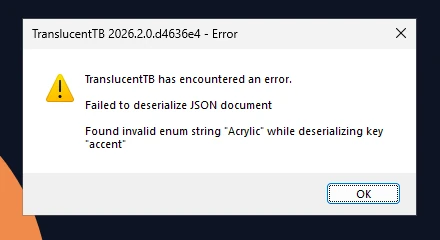
How this was captured
Captured October 29, 2026 on Windows build 26100 in our hands-on test; only cropped and resized. Settings used:
{ "desktop_appearance": { "accent": "Acrylic", "color": "#00000000" } }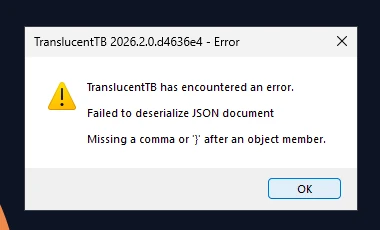
How this was captured
Captured October 29, 2026 on Windows build 26100 in our hands-on test; only cropped and resized. Settings used:
{ "desktop_appearance": { "accent": "clear", "color": "#00000000" } "oops": 1 }"Portable mode only works on Windows 11."
Portable mode only works on Windows 11.The portable zip loads its UI runtime through the Windows 11 Dynamic Dependencies API (api-ms-win-appmodel-runtime-l1-1-5). Windows 10 doesn't have it, so the portable build exits. On Windows 10, install from the Microsoft Store, winget or the App Installer file.
"…cannot start in portable mode because … is not installed"
TranslucentTB cannot start in portable mode because Microsoft.UI.Xaml.2.8_8wekyb3d8bbwe (version 8.2501.31001.0) is not installed on the system.The portable build borrows two framework packages that the Store version installs automatically: Microsoft.VCLibs.140.00 (14.0.33519.0 or later) and Microsoft.UI.Xaml.2.8 (8.2501.31001.0 or later). The message names whichever one is missing.
Easiest: install the Store version once
Installing TranslucentTB from the Store or with winget pulls in both packages. You can then uninstall it and keep using the portable build.
Or install the framework packages directly
The 2026.2 GitHub release links
winui-x64.appx(from 2026.1) andvclibs-uwp-x64.appx(from 2024.3) in its App Installer file. Double-click the matching .appx for your CPU (x64 or arm64) to install it, or in PowerShell:PowerShellAdd-AppxPackage .\winui-x64.appx
"MSVCP140.dll was not found" (portable)
The code execution cannot proceed because MSVCP140.dll was not found. Reinstalling the program may fix this problem.This one is a Windows message, not TranslucentTB's. We checked the import table of the 2026.2 portable TranslucentTB.exe: it links to MSVCP140.dll, MSVCP140_ATOMIC_WAIT.dll, VCRUNTIME140.dll and VCRUNTIME140_1.dll, which come from the desktop Microsoft Visual C++ 2015–2022 Redistributable. The Store package doesn't need it. Install the redistributable for your CPU from Microsoft's download page, or use the Store version.
"…asked Windows to enable a startup task but Windows did not enable it."
TranslucentTB asked Windows to enable a startup task but Windows did not enable it. This is typically the result of a corrupt registry, which could be caused by running debloating or privacy scripts on your computer.The packaged app starts at boot through a Windows startup task declared in its manifest. When you tick Open at boot, it asks Windows to enable that task; this message means Windows answered with anything other than enabled. Debloat and privacy scripts often set the policies that block packaged startup tasks.
Apply the startup policy from the README
Save as a
.regfile, double-click it, then restart:registry (.reg)Windows Registry Editor Version 5.00 [HKEY_LOCAL_MACHINE\SOFTWARE\Microsoft\Windows\CurrentVersion\Policies\System] "EnableFullTrustStartupTasks"=dword:00000002 "EnableUwpStartupTasks"=dword:00000002 "SupportFullTrustStartupTasks"=dword:00000001 "SupportUwpStartupTasks"=dword:00000001Check Startup apps
Settings › Apps › Startup: make sure TranslucentTB is on.
Tick Open at boot again
More detail, including portable builds: Open at boot.
"Cannot change startup state because it is locked by external factors"
Cannot change startup state because it is locked by external factors (for example Group Policy).Windows reports the startup task as controlled by policy (enabled or disabled by policy), so the app can't toggle it. On a work PC, ask your administrator. At home, the registry values above control it; a "disabled by user" state instead opens Settings › Apps › Startup so you can turn it on there.
"TranslucentTB is already running!"
TranslucentTB is already running! Right-click on the tray icon to access it.Only one copy can run. A second launch tells the first one to show this notification and reset its dynamic state, then exits. If you can't see the icon, it is in the tray overflow or hidden: see tray icon missing.
"The language override setting … has been changed"
The language override setting in the configuration file has been changed. Please restart TranslucentTB for the changes to take effect.The language key in settings.json is applied only at startup. Exit TranslucentTB from the tray and start it again. The value must look like de-DE or ja (lowercase language, uppercase region); see language.
Problems without an error message
Not transparent after a Windows update
This is the most reported TranslucentTB problem. Feature updates (24H2, 25H2) and Insider builds can change the taskbar's internals, and TranslucentTB only adapts in a new release. Recent reports: #1367 (26300), #1356 (Insider), #1267 (26220), #1366.
Restart Windows once after the update
Explorer may still hold the old helper or not be fully started.
Update TranslucentTB
The Store version updates itself; check Store › Library. winget:
winget upgrade CharlesMilette.TranslucentTB.Check your build
Run
winverand compare with the support table. On release builds (not Insider) 2026.2 supports the XAML taskbar through 25H2.Search the issues for your build number
If it is a new Insider build, someone has usually filed it already. Add your details there.
Taskbar is black or solid instead of see-through
- Accent is
opaque. Opaque forces the alpha to 100%, whatever your color says. Useclearoracrylic. - A maximized window is open. If the Maximized window state is enabled (it is off by default), its look wins over Desktop. Its default look is acrylic. Turn it off or set it to Clear in the tray menu.
- Battery saver is on and you enabled the battery saver state, which defaults to opaque black.
- Your color's alpha is
FF. TranslucentTB colors are#RRGGBBAA; the alpha is the last two digits.#000000FFis solid black;#00000000is invisible. - The app isn't running or Windows' own "Transparency effects" is off and you are seeing Windows' default.
Acrylic looks completely transparent
If the taskbar shows no frosting at all with the acrylic accent, Windows is not drawing acrylic. We saw exactly this in our Windows test on a machine without a graphics card:
acrylic on our test machine, which has no GPU (Hyper-V video): Windows does not draw acrylic there, so the bar showed as fully transparent.

How these were captured
Captured October 29, 2026 on Windows build 26100 in our hands-on test; only cropped and resized. Settings used:
{ "desktop_appearance": { "accent": "acrylic", "color": "#00000000" } }Turn on transparency effects
Settings › Personalization › Colors › Transparency effects on.Check battery saver and remote sessions
Windows turns acrylic off in battery saver (energy saver) and often over Remote Desktop and in virtual machines without a GPU.Use blur instead
The blur accent uses a different brush and worked on the same machine. Try"accent": "blur"with"blur_radius": 30.
Colors look different from what I picked
Windows can tint the taskbar with your accent color. Turn off Settings › Personalization › Colors › Show accent color on Start and taskbar so only TranslucentTB's color applies. Light mode also changes what normal looks like and the color of the taskbar icons. Acrylic and blur mix your color with what's behind the taskbar, so the same hex looks lighter or darker on different wallpapers.
Second monitor's taskbar not transparent
Each monitor's taskbar gets its own state, so one can be "maximized" while the other is "desktop". If a secondary taskbar ignores TranslucentTB entirely, it usually wasn't picked up when it appeared (after docking, sleep or a display change). Reports: #1321, #1322, #719. 2026.2 fixed "the app would not be able to update the taskbar on certain monitors".
Update to 2026.2
It contains the monitor fixes.
Reset the dynamic state
Ctrl+Alt+Shift+F1.
Restart Explorer, then TranslucentTB
This forces both taskbars to be found again.
Check for a maximized window on that screen
The look may be correct for that monitor's state.
Transparency lost after sleep, lock or a game
Windows may rebuild the taskbar's look when you wake the PC, change displays or leave a full-screen game. Press Ctrl+Alt+Shift+F1 or use Advanced › Reset dynamic state. If it happens every time, note the exact trigger and add it to #1285 or a new issue with a debug log (see collect a log).
Tray icon missing
- It's in the overflow. Click ^ next to the clock. On Windows 11, turn it on under Settings › Personalization › Taskbar › Other system tray icons. Releases 2024.1 and 2024.3 changed the icon's identity, which reset where Windows shows it.
hide_trayis true. This hidden setting removes the icon, which is TranslucentTB's only menu. Starting the app again doesn't bring it back. Open settings.json directly (paste the path below into Win+R), set"hide_tray": falseand save; the icon returns within a second.%LOCALAPPDATA%\Packages\28017CharlesMilette.TranslucentTB_v826wp6bftszj\RoamingState\settings.json- It isn't running. Start it from the Start menu. If it closes right away, look for an error dialog behind other windows, or check the log.
Blur option missing from the menu
The tray menu hides Blur when your taskbar can't do it. From the 2026.2 source:
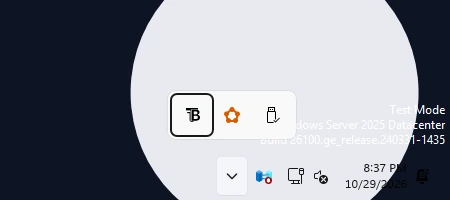
How this was captured
Captured October 29, 2026 on Windows build 26100 in our hands-on test; only cropped and resized.
| Taskbar | Blur? | Notes |
|---|---|---|
| Windows 10 | Yes | Fixed strength; blur_radius is ignored. |
| Windows 11 21H2 (22000) | From 22000.282 | Blur was very laggy before KB5006746, so it's off below revision 282. |
| Windows 11 early 22H2 ("mixed" taskbar) | No | Saved blur settings are switched to acrylic. |
| Windows 11 22H2+ XAML taskbar | Yes, since 2024.3 | Strength set by blur_radius. |
| Windows 11 22H2+ with ExplorerPatcher's classic taskbar | No | Windows removed the blur attribute there; blur becomes acrylic. |
Note: the official README still says blur is "Windows 10 and Windows 11 build 22000 only". That has been out of date since 2024.3.
White squares or a white block behind taskbar icons
Some users see white rectangles behind icons with a transparent taskbar (#1361). The development branch has a commit titled "Add a workaround for white squares" (e8bbe76, September 2026), made after 2026.2, so the fix is not released yet. Until then, a reset (Ctrl+Alt+Shift+F1) or Explorer restart may clear it, and an acrylic look hides it better than clear.
TranslucentTB lagging, not responding or freezing the taskbar
TranslucentTB itself does almost no work: in our test it used 0 ms of CPU over 30 idle seconds and 78 ms while we opened, maximized and closed windows 18 times (performance details). When the taskbar lags or the tray menu stops responding, check these instead:
Reset the state
Press Ctrl+Alt+Shift+F1 or use Advanced › Reset dynamic state.
Lower the blur
A very large
blur_radiusasks Windows to blur a wide area on every frame. Try the default 9, or use clear or acrylic.Turn off debug logging
If you set
verbositytotraceordebug, set it back towarn; every window change is then written to the log.Rule out other taskbar tools
Two programs changing the same taskbar can fight over it. See conflicts.
Update
2026.2 fixed re-entrancy crashes and resource leaks in the helper; older versions may misbehave on current Windows builds.
TranslucentTB settings not saving
Changes you make in the tray menu stay in memory and are written to settings.json only at these moments (from MainAppWindow::Exit and ConfigManager in 2026.2): when you choose Exit, when you choose Advanced › Edit settings, when Windows signs out or shuts down normally, and on the first run. So:
- Ending TranslucentTB in Task Manager, a crash or a power cut loses changes made since the last save. Use Exit instead.
- Disable saving settings (
disable_saving) is checked: TranslucentTB never writes the file. Uncheck it in Advanced. - The file has an error: TranslucentTB loads defaults, and the next save writes those defaults over your file. Check it in the validator and see settings reset.
- Edits to the file seem ignored: make sure you edit the file at the right location and save it; TranslucentTB reloads it within a fraction of a second.
TranslucentTB with Wallpaper Engine or Lively Wallpaper
They do different jobs and can run together: Wallpaper Engine and Lively draw the desktop wallpaper, TranslucentTB changes the taskbar on top of it, and a clear or blurred taskbar shows the animated wallpaper through. We did not test either app ourselves. If the taskbar stops being transparent while a live wallpaper runs, check whether the wallpaper app also offers its own taskbar effect and, if it does, turn that off so only one tool changes the taskbar; then press Ctrl+Alt+Shift+F1. A full-screen live wallpaper counts as a window for TranslucentTB only if it shows up as a normal or maximized window; if the taskbar switches to your maximized-window look on the desktop, add that app's process to ignored windows.
Antivirus flags or deletes TranslucentTB
TranslucentTB loads DLLs into Explorer, which is behavior antivirus heuristics watch for. Download only from the Store, winget or the official GitHub releases and check the signature and hash. Full evidence and steps: Is TranslucentTB safe?
Conflicts with other taskbar tools
Only one program can comfortably own the taskbar's background. "Verified" below means the TranslucentTB README or source says so; "reported" means users reported it in a GitHub issue or a test, and we have not reproduced it.
| Tool | Status | Evidence | What to do |
|---|---|---|---|
| ExplorerPatcher | Compatible (verified) | README; 2024 commit "Properly handle ExplorerPatcher (and other tools which bring back the classic taskbar)" | With its classic taskbar, TranslucentTB uses the Windows 10 method. No blur on 22H2+. |
| RoundedTB | Compatible (verified) | README | Use both. |
| GlazeWM, Windows Magnifier | Fixed in 2024.1 | Release notes: "Fix crashes with GlazeWM and the Magnifier app" | Update to a current release. |
| StartAllBack | Conflicts (reported) | #1150, #1034 | StartAllBack has its own taskbar transparency. Use one or the other. |
| Windhawk taskbar styler mods | Conflicts (reported) | #1195; a 2026-10-22 test saw 2026.2 crash with Taskbar Styler 1.10 running | Disable the styler mod, or use its transparent themes instead of TranslucentTB. |
| YASB (status bar) | Issues reported | #1210; 2026.1 fixed "compatibility issues with applications that fake a taskbar" | Update both; test without YASB. |
| NVIDIA tray app | Issue reported | #1324 | Check the issue for workarounds. |
Comparing these tools in depth: TranslucentTB alternatives.
Collect a log
A log turns "it doesn't work" into something the developers can fix. TranslucentTB writes one log file per run, named after the process start time.
Turn on debug logging
Tray icon › Advanced › Log verbosity › Debug. (Or set
"verbosity": "debug"in settings.json.)Reproduce the problem
Then choose Advanced › Dump dynamic state to log while the taskbar looks wrong. It writes every taskbar, its monitor and the windows TranslucentTB thinks are on it.
Open the log
Advanced › Open log file. Folders:
Store, winget and App Installer:
%LOCALAPPDATA%\Packages\28017CharlesMilette.TranslucentTB_v826wp6bftszj\TempState\Portable:%TEMP%\TranslucentTB\Set verbosity back to Warning
The default is
warn.
Report a bug the useful way
TranslucentTB is maintained by volunteers. Bugs go to its GitHub issues, not to this site. Search for your Windows build number first, then include:
- TranslucentTB version and how you installed it (Store, winget, App Installer, portable, Scoop, Chocolatey).
- Windows edition and full build from
winver, for example 26100.4652. - Other shell tools you run, and whether the problem happens without them.
- The exact error text (press Ctrl+C on a Windows dialog to copy it) and the debug log.
- Monitor setup and whether it started after sleep, an update or a display change.
The troubleshooter builds this report for you.
FAQ
Why does TranslucentTB stop working after Windows updates?
Should I run TranslucentTB as administrator?
How do I reset TranslucentTB?
Why does my taskbar go back to normal when TranslucentTB closes?
Keep going
Something wrong or out of date? Email hello@translucenttb.dev and we will fix it.