Docs · startup
Start TranslucentTB with Windows
The Store, winget and App Installer versions start at sign-in through a Windows startup task that you switch with Open at boot. The portable version has no startup task, so you add it yourself. When Open at boot is grayed out or refuses to turn on, the cause is almost always a Windows policy, and there is a registry fix.
On this page
Short answer
How do I make TranslucentTB start automatically?
Click the TranslucentTB tray icon and check Open at boot. If it is already checked but TranslucentTB still does not start, open Settings › Apps › Startup and make sure TranslucentTB is On.
How startup works for each version
| Version | How it starts at sign-in | Where to switch it |
|---|---|---|
| Microsoft Store, winget, App Installer | A packaged-app startup task with the ID TranslucentTB, declared in the app's manifest | Tray menu Open at boot, Settings › Apps › Startup, or Task Manager › Startup apps |
| Portable zip | Nothing by default | A shortcut in your Startup folder, or a Task Scheduler task (below) |
The package manifest of 2026.2 declares the task with Enabled="true". A startup task of a packaged desktop app only runs after you have opened the app at least once yourself, so start TranslucentTB once after installing it.
The three switches (tray menu, Settings, Task Manager) all change the same task. What the tray item can do depends on the task's state, which TranslucentTB reads from Windows:
| Task state | Open at boot shows | Clicking it |
|---|---|---|
Enabled | Checked | Turns startup off |
Disabled | Unchecked | Asks Windows to turn it on. If Windows refuses, you get the "did not enable it" message |
DisabledByUser | Unchecked | Opens Settings › Apps › Startup: once you turn a startup app off in Windows, only you can turn it back on there |
DisabledByPolicy | Unchecked, grayed out | Nothing; a policy forbids it |
EnabledByPolicy | Checked, grayed out | Nothing; a policy forces it on |
| Task could not be read | Unchecked, grayed out | Nothing; see the log |
After a fresh install in our Windows test, TranslucentTB was already set to start with Windows in both places Windows shows it:
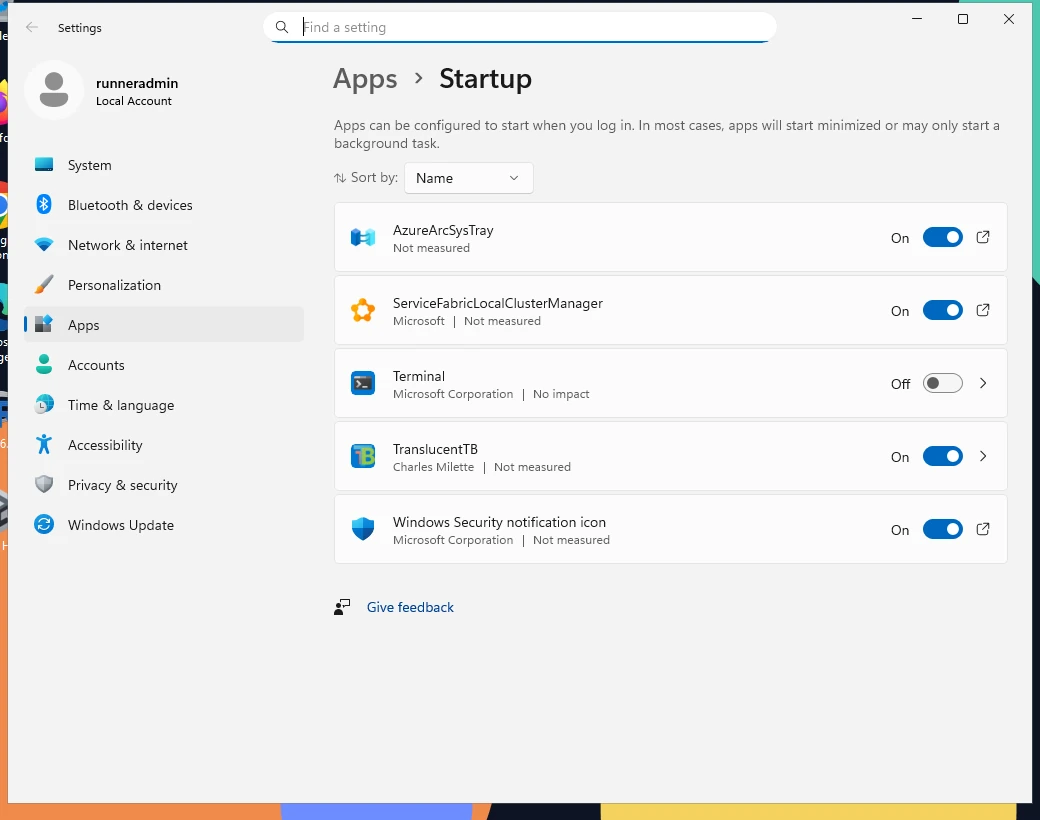
How this was captured
Captured October 29, 2026 on Windows build 26100 in our hands-on test; only cropped and resized.
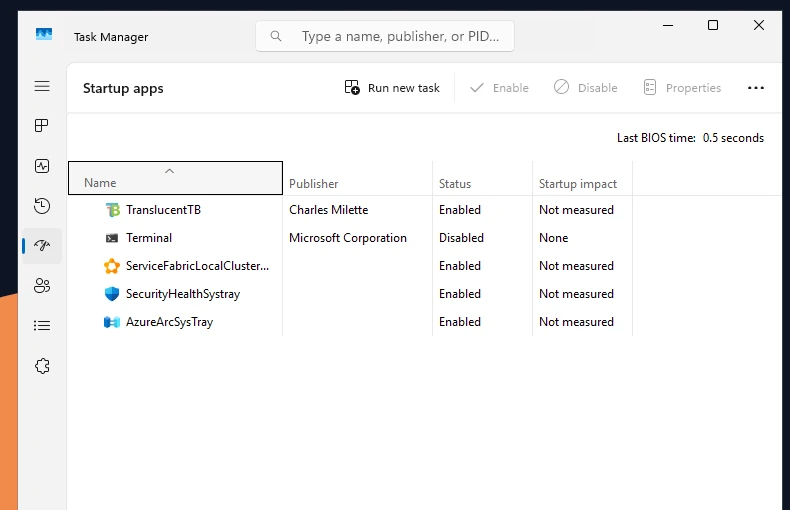
How this was captured
Captured October 29, 2026 on Windows build 26100 in our hands-on test; only cropped and resized.
Turn it on
Click the tray icon and check Open at boot. It is near the bottom of the menu, below Advanced.
Open Settings › Apps › Startup and switch TranslucentTB to On. You can jump straight there with Win+R and:
ms-settings:startupappsPress Ctrl+Shift+Esc, open Startup apps (Windows 11) or the Startup tab (Windows 10), right-click TranslucentTB and choose Enable.
Open at boot is grayed out
A grayed-out item means Windows reports the startup task as controlled by policy (DisabledByPolicy or EnabledByPolicy). Clicking it in that state only produces this log entry:
On a work or school PC, the policy may be set on purpose by your administrator; ask them. On a home PC it is usually left behind by a "debloat" or privacy script. The TranslucentTB README gives this registry fix:
Windows Registry Editor Version 5.00

[HKEY_LOCAL_MACHINE\SOFTWARE\Microsoft\Windows\CurrentVersion\Policies\System]
"EnableFullTrustStartupTasks"=dword:00000002
"EnableUwpStartupTasks"=dword:00000002
"SupportFullTrustStartupTasks"=dword:00000001
"SupportUwpStartupTasks"=dword:00000001
Save the file
Copy the block into Notepad and save it as
translucenttb-startup.reg(choose All files as the type, so it does not end in .txt).Merge it
Double-click the file and accept the prompts. It writes to
HKEY_LOCAL_MACHINE, so Windows asks for administrator approval.Sign out and back in
Then check Open at boot again. It should be clickable.
The same four values from an administrator Command Prompt or PowerShell:
reg add "HKLM\SOFTWARE\Microsoft\Windows\CurrentVersion\Policies\System" /v EnableFullTrustStartupTasks /t REG_DWORD /d 2 /f
reg add "HKLM\SOFTWARE\Microsoft\Windows\CurrentVersion\Policies\System" /v EnableUwpStartupTasks /t REG_DWORD /d 2 /f
reg add "HKLM\SOFTWARE\Microsoft\Windows\CurrentVersion\Policies\System" /v SupportFullTrustStartupTasks /t REG_DWORD /d 1 /f
reg add "HKLM\SOFTWARE\Microsoft\Windows\CurrentVersion\Policies\System" /v SupportUwpStartupTasks /t REG_DWORD /d 1 /fWhat the values cover: FullTrust startup tasks are those of packaged desktop apps like TranslucentTB; Uwp startup tasks are those of Store (UWP) apps. The fix sets both families to the values the TranslucentTB developers recommend. It affects every packaged app's startup task, not only TranslucentTB's. To see what is set now before you change anything:
Get-ItemProperty "HKLM:\SOFTWARE\Microsoft\Windows\CurrentVersion\Policies\System" | Select-Object *StartupTasks"Windows did not enable it"
When you check Open at boot, TranslucentTB asks Windows to enable the task. If Windows answers with anything other than enabled, you see:
TranslucentTB asked Windows to enable a startup task but Windows did not enable it. This is typically the result of a corrupt registry, which could be caused by running debloating or privacy scripts on your computer.Apply the registry fix above, sign out and in, and try again. If it still fails, reinstalling TranslucentTB re-registers the task: see Uninstall & reset and Install guide.
Checked, but it does not start
- Open TranslucentTB once. A freshly installed package does not run at sign-in until you have started it yourself at least once.
- Look in Task Manager › Startup apps. TranslucentTB should be listed as Enabled. If it says Disabled, enable it there.
- Give it a few seconds. Windows launches startup apps after you sign in, not before the desktop appears, so the taskbar shows its normal look for a moment.
- Check the log. If TranslucentTB starts and then quits, the reason is in its log (
%LOCALAPPDATA%\Packages\28017CharlesMilette.TranslucentTB_v826wp6bftszj\TempState\). Common causes are covered in Troubleshooting.
If something else (another startup manager, a script) already launched TranslucentTB before Windows' startup task runs, the second copy exits quietly: TranslucentTB suppresses its "already running" notification when the extra launch comes from its own startup task.
TranslucentTB starts slowly after sign-in
Windows starts startup apps only after you sign in, in a batch with everything else in Task Manager › Startup apps, so the taskbar shows its normal look for a few seconds first. On Windows 11, TranslucentTB then has to attach its helper to Explorer's taskbar, which it waits up to 35 seconds for (from ExplorerTAP/api.cpp in 2026.2). A slow sign-in can make that wait time out with "Failed to initialize XAML Diagnostics."
- Trim other startup apps. Disable startup entries you do not need in Task Manager › Startup apps; fewer apps compete for the first seconds after sign-in.
- Start it a little later on purpose. If TranslucentTB fails right after sign-in but works when you start it by hand, launch it with a short delay from Task Scheduler instead of Open at boot. For the Store, winget or App Installer version:
schtasks /create /tn "TranslucentTB delayed" /tr "explorer.exe shell:AppsFolder\28017CharlesMilette.TranslucentTB_v826wp6bftszj!TranslucentTB" /sc onlogon /delay 0000:30Then uncheck Open at boot, so Windows does not also start it; a second launch would only reset the running copy. For the portable version, use the same command with the path to TranslucentTB.exe after /tr, as in the portable section. To remove the task: schtasks /delete /tn "TranslucentTB delayed" /f.
Start the portable version with Windows
The portable zip runs without a package, so it has no startup task and no Open at boot item. Pick one of these:
Open the Startup folder
Press Win+R, type
shell:startupand press Enter. This opens%AppData%\Microsoft\Windows\Start Menu\Programs\Startup.Add a shortcut
In another Explorer window, right-click
TranslucentTB.exein your portable folder and choose Show more options › Create shortcut (Windows 11). Move the shortcut into the Startup folder.Sign out and in to test
The shortcut also appears in Task Manager's Startup apps, where you can switch it off later.
A scheduled task can wait a few seconds after sign-in, which gives Explorer time to load. From a Command Prompt run as administrator (logon tasks need it), with your own path:
schtasks /create /tn "TranslucentTB" /tr "C:\Tools\TranslucentTB\TranslucentTB.exe" /sc onlogon /it /delay 0000:15/sc onlogonruns it when you sign in;/itonly while you are signed in, on your desktop./delay 0000:15waits 15 seconds (formatmmmm:ss). Leave it out to start immediately.- If the path contains spaces, quote it inside the quotes:
/tr "\"C:\My Tools\TranslucentTB.exe\"".
Remove it again with:
schtasks /delete /tn "TranslucentTB" /fThe README notes that portable versions can be added to startup by creating a shortcut to the executable in %AppData%\Microsoft\Windows\Start Menu\Programs\Startup, which is the first method.
Stop it from starting
Uncheck Open at boot, or switch TranslucentTB off in Settings › Apps › Startup or Task Manager. For the portable version, delete the shortcut or the scheduled task. Uninstalling the Store version removes its startup task too.
FAQ
Why is Open at boot grayed out in TranslucentTB?
Why is there no Open at boot option?
Does Open at boot need administrator rights?
HKEY_LOCAL_MACHINE.TranslucentTB starts, but the taskbar looks normal for a few seconds
Can I make it start faster?
Keep going
Something wrong or out of date? Email hello@translucenttb.dev and we will fix it.