Guide · Windows 11 and 10
How to make the taskbar transparent on Windows 11 and 10
Windows has no setting for a clear taskbar, and the registry tweaks most tutorials repeat did nothing on our Windows 11 24H2 test machine. The method that worked: TranslucentTB, a free app that makes the taskbar fully transparent the moment you finish installing it.
On this page
- Step by step with TranslucentTB
- Every method compared
- Windows' own setting: Transparency effects
- Registry tweaks: what we found
- TranslucentTB: clear, blur or acrylic
- Windows 11 (22H2, 23H2, 24H2, 25H2)
- Windows 10
- Can you do it without an app?
- Fully transparent (100%)
- Adjust or increase the taskbar transparency level
- Make the taskbar transparent without activating Windows
- With Wallpaper Engine, Lively Wallpaper or live wallpapers
- Rainmeter and a translucent taskbar
- TaskbarX
- Windhawk
- Want it gone instead? Auto-hide
- On a laptop
- If the taskbar won't go transparent
- FAQ
Short answer
What is the fastest way to make the taskbar transparent?
Install TranslucentTB (free, open source) from the Microsoft Store or with winget install CharlesMilette.TranslucentTB, start it and click Continue. Its default look is already Clear with a fully transparent color, so the taskbar becomes see-through right away, even with windows open. To change the look later, right-click its tray icon and open Desktop.
Windows' own taskbar before TranslucentTB starts.

Right after the first run: the default Desktop look, clear with #00000000.

How these were captured
Captured October 29, 2026 on Windows build 26100 in our hands-on test; only cropped and resized. Settings used:
{ "desktop_appearance": { "accent": "clear", "color": "#00000000" } }Step by step with TranslucentTB
These screenshots come from a clean Windows machine (build 26100, the Windows 11 24H2 code base) in our hands-on test.
Install TranslucentTB
Use the Microsoft Store (search "TranslucentTB", ID 9PF4KZ2VN4W9), or run winget in Terminal. Both install the same signed package from the developers. All install options.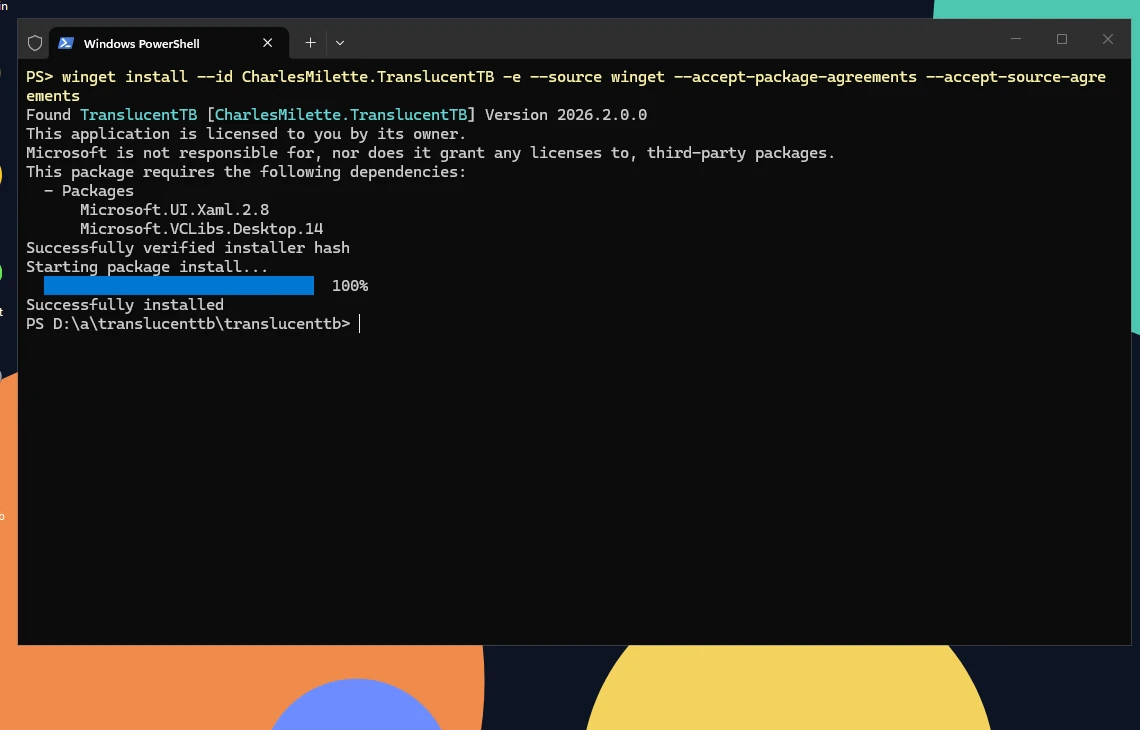
Real screenshot · TranslucentTB 2026.2 · Windows build 26100winget install --id CharlesMilette.TranslucentTB -e: winget finds 2026.2.0.0, verifies the installer hash and installs it with its two dependencies. How this was captured
Captured October 29, 2026 on Windows build 26100 in our hands-on test; only cropped and resized.
Start it and click Continue
The Welcome page opens the first time. Clicking Continue saves the default settings, and the taskbar turns clear.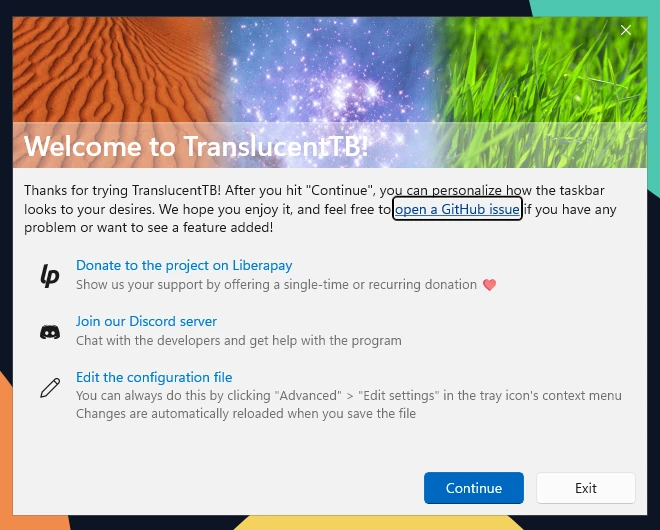
Real screenshot · TranslucentTB 2026.2 · Windows build 26100Step 1: the first time TranslucentTB starts, the Welcome page opens. Click Continue. How this was captured
Captured October 29, 2026 on Windows build 26100 in our hands-on test; only cropped and resized.
Find the tray icon
New tray icons start in the overflow area: click the ^ next to the clock. Drag the icon onto the taskbar if you want it always visible.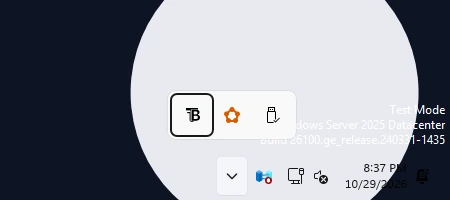
Real screenshot · TranslucentTB 2026.2 · Windows build 26100Step 2: the TranslucentTB icon starts in the tray overflow. Click the ^ arrow next to the clock to see it. How this was captured
Captured October 29, 2026 on Windows build 26100 in our hands-on test; only cropped and resized.
Right-click the icon and open Desktop
Pick Clear for a see-through taskbar, Blur for a soft blur or Acrylic for frosted glass. Accent Color sets the tint and its transparency.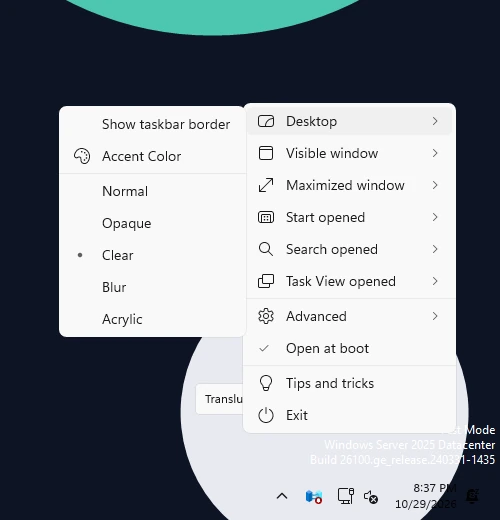
Real screenshot · TranslucentTB 2026.2 · Windows build 26100Step 4: open Desktop. The current look (Clear) has a dot; Accent Color opens the color picker. How this was captured
Captured October 29, 2026 on Windows build 26100 in our hands-on test; only cropped and resized.
Optional: keep it clear with windows open
By default, open and maximized windows don't change the taskbar. If you turned on Visible window or Maximized window, set them to Clear as well. How the states work.
Every method compared
We tried each method people search for on the same Windows machine (build 26100). "Tested by us" means we ran it and captured the screen; anything else is from the tool's documentation or user reports and is labeled as such.
| Method | Fully clear? | Works on Windows 11 24H2 | Needs an app | Cost | Tested by us |
|---|---|---|---|---|---|
| Transparency effects (Windows setting) | No | Slight tint only | No | Free | Yes |
| Registry tweaks | No | No visible change | No | Free | Yes, 3 tweaks |
| TranslucentTB | Yes | Yes | Yes | Free, open source | Yes |
| TaskbarX | On Windows 10 | No change in our test | Yes | Free (portable) | Yes |
| Windhawk + Taskbar Styler | Yes, with a style | Yes, per its docs | Yes | Free | No |
| Lively Wallpaper | Clear theme, per its docs | Not verified | Yes | Free | No |
| Wallpaper Engine | No taskbar option | — | Yes | Paid | No |
| Rainmeter | Older skins | Reported broken | Yes | Free | No |
Windows' own setting: Transparency effects
Settings › Personalization › Colors › Transparency effects is the only built-in option. It lets Windows draw its own frosted material on the taskbar, Start and some windows. It does not give you a clear taskbar, a custom color or a strength slider.
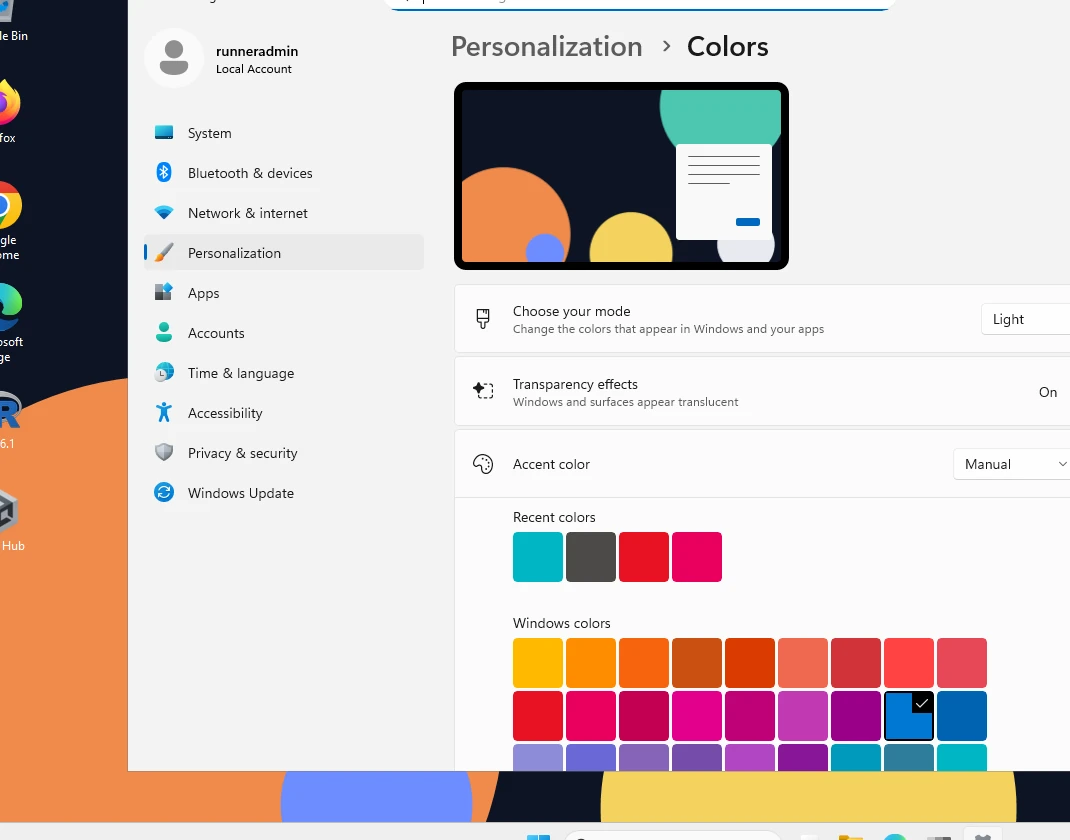
How this was captured
Captured October 29, 2026 on Windows build 26100 in our hands-on test; only cropped and resized.
Windows' own taskbar in Light mode with Transparency effects on (build 26100, no TranslucentTB).

Windows' own taskbar in Dark mode with Transparency effects on.

How these were captured
Captured October 29, 2026 on Windows build 26100 in our hands-on test; only cropped and resized. Settings used:
Registry tweaks: what we found
Many tutorials recommend one of three registry values. We set each one on build 26100, restarted Explorer, and captured the taskbar. None of them changed it.
After setting UseOLEDTaskbarTransparency = 1 and restarting Explorer: no visible change on build 26100.

After setting TaskbarAcrylicOpacity = 0 and restarting Explorer: no visible change on build 26100.

After setting DWM ForceEffectMode = 2 and restarting Explorer: no visible change on build 26100.

How these were captured
Captured October 29, 2026 on Windows build 26100 in our hands-on test; only cropped and resized. Settings used:
| Value | Where | What tutorials say | Our result on 26100 |
|---|---|---|---|
UseOLEDTaskbarTransparency = 1 | HKLM\SOFTWARE\Microsoft\Windows\CurrentVersion\Explorer\Advanced | Makes the taskbar a bit more transparent with Transparency effects on | No visible change |
TaskbarAcrylicOpacity = 0 | HKCU\Software\Microsoft\Windows\CurrentVersion\Explorer\Advanced | Sets the acrylic opacity of the Windows 10 taskbar (0–10) | No visible change |
ForceEffectMode = 2 | HKLM\SOFTWARE\Microsoft\Windows\Dwm | Forces a different blur effect mode | No visible change |
TaskbarAcrylicOpacity is a Windows 10 tweak: it described the Windows 10 taskbar's acrylic, and the Windows 11 taskbar is drawn differently. Because all three act on Windows' own translucency, which our machine cannot draw without a graphics card, a small effect on your PC is possible. What none of them does, by any account we found, is make the taskbar fully clear.
If you tried them, this removes all three and restarts Explorer. Run PowerShell as administrator:
Remove-ItemProperty 'HKLM:\SOFTWARE\Microsoft\Windows\CurrentVersion\Explorer\Advanced' -Name UseOLEDTaskbarTransparency -ErrorAction SilentlyContinue
Remove-ItemProperty 'HKCU:\Software\Microsoft\Windows\CurrentVersion\Explorer\Advanced' -Name TaskbarAcrylicOpacity -ErrorAction SilentlyContinue
Remove-ItemProperty 'HKLM:\SOFTWARE\Microsoft\Windows\Dwm' -Name ForceEffectMode -ErrorAction SilentlyContinue
Stop-Process -Name explorer -ForceExplorer restarts by itself a few seconds later; your open windows stay open.
TranslucentTB: clear, blur or acrylic
TranslucentTB changes the taskbar's background itself, so it works whatever Windows' own transparency settings are. It has five looks and can switch between them when a window is open or maximized, or when Start opens.
clear with #00000000: the taskbar background is gone.

clear with #1D4ED880: blue at 50% alpha, no blur.

blur with blur_radius 30: shapes become soft.

opaque with #1D4ED820: the alpha (20) is ignored and the bar is solid.

How these were captured
Captured October 29, 2026 on Windows build 26100 in our hands-on test; only cropped and resized. Settings used:
{ "desktop_appearance": { "accent": "clear", "color": "#00000000" } }{ "desktop_appearance": { "accent": "clear", "color": "#1D4ED880" } }{ "desktop_appearance": { "accent": "blur", "color": "#00000010", "blur_radius": 30 } }{ "desktop_appearance": { "accent": "opaque", "color": "#1D4ED820" } }- Clear: your color at your opacity, no blur.
#00000000is invisible. - Blur: a Gaussian blur, strength set with
blur_radiuson Windows 11. - Acrylic: Windows' frosted material with your tint. It needs a graphics card; on our test machine it showed as clear (why).
- Opaque and Normal: a solid color, or Windows' own look.
Details for each: appearance modes. Is it safe? We checked the signatures and hashes: is TranslucentTB safe.
Windows 11 (22H2, 23H2, 24H2, 25H2)
Use TranslucentTB 2026.2. The Windows 11 taskbar from 22H2 on is built with XAML, and TranslucentTB loads a small helper into Explorer to replace its background; that's also why blur with an adjustable radius only exists on these versions. Version-by-version notes and known issues: TranslucentTB on Windows 11.
Windows 10
TranslucentTB works on Windows 10 version 1903 and later from the Store or the App Installer file (the portable build needs Windows 11). On Windows 10 the blur strength is fixed, and you can also hide the Show Desktop button. TaskbarX and the TaskbarAcrylicOpacity registry value were made for Windows 10 too. Windows 10 guide.
Can you do it without an app?
Not fully. Windows only offers Transparency effects, which gives a light frosted look on PCs with a graphics card, and the registry tweaks did nothing visible in our test. A clear or custom-colored taskbar needs a tool. TranslucentTB is the smallest option: one app in the tray using about 9–14 MB of memory in our measurements (details), and it puts the taskbar back to normal when you exit it.
Fully transparent (100%)
In TranslucentTB, choose Clear with the color #00000000: the last two digits are the alpha, and 00 means 0% opacity. That is the default for the desktop look. Icons, the clock and the Start button stay visible; only the background disappears. If the taskbar still turns solid when you open or maximize a window, set Visible window and Maximized window to Clear too, or turn them off. More detail.
Adjust or increase the taskbar transparency level
Windows has no slider. In TranslucentTB the level is the alpha of the color, in the last two hex digits of #RRGGBBAA:
| Opacity | Alpha | Example (black tint) |
|---|---|---|
| 0% (invisible) | 00 | #00000000 |
| 25% | 40 | #00000040 |
| 50% | 80 | #00000080 |
| 75% | BF | #000000BF |
| 100% (solid) | FF | #000000FF |
Set it with the slider in Desktop › Accent Color, or in settings.json. For blur, blur_radius sets the strength from 0 to 750 (default 9). The settings builder previews both over your own wallpaper.
Make the taskbar transparent without activating Windows
On an unactivated copy, Windows locks the Personalization pages, so Transparency effects and the accent color can't be changed there. TranslucentTB doesn't use those settings: it changes the taskbar directly and keeps its own settings file. From how it works, it is expected to work the same on an unactivated PC; we have not tested an unactivated machine ourselves.
With Wallpaper Engine, Lively Wallpaper or live wallpapers
A transparent taskbar looks best over a moving wallpaper, and that's a common reason people search for this.
- Wallpaper Engine has no taskbar option of its own. In its Steam discussions, users point to TranslucentTB for this. TranslucentTB only changes the taskbar, so it works over any wallpaper app.
- Lively Wallpaper (free) added a taskbar theme in version 1.5, under Settings › System › Taskbar Theme, with Clear, Blur, Fluent and wallpaper-based options, off by default (gHacks, Lively on GitHub). Use either Lively's theme or TranslucentTB, not both on the same taskbar; a user report says Lively disables its own theming when it detects another taskbar tool.
We have not tested either wallpaper app ourselves.
Rainmeter and a translucent taskbar
Older Rainmeter taskbar skins and the TranslucentRM plugin (GitHub) used the Windows 10 blur method. Rainmeter forum users report that the taskbar part no longer works on Windows 11, while the effect on skin windows still does. For the taskbar itself, use TranslucentTB and keep Rainmeter for your desktop skins. Not tested by us.
TaskbarX
TaskbarX 1.7.8.0 started with its transparent style (-tbs=1) on build 26100: the taskbar did not change.

How these were captured
Captured October 29, 2026 on Windows build 26100 in our hands-on test; only cropped and resized. Settings used:
TaskbarX's last release, 1.7.8.0, dates from October 2022 and its README targets Windows 10. We ran it on build 26100 with its transparent style and the taskbar didn't change. TaskbarX vs TranslucentTB.
Windhawk
Windhawk is a free mod manager; its Windows 11 Taskbar Styler mod can restyle the taskbar, including a transparent background, by editing styles. It is more flexible but needs more setup, and running it alongside TranslucentTB on the taskbar background causes conflicts. We have not tested it. Windhawk vs TranslucentTB.
Want it gone instead? Auto-hide
To hide the taskbar completely until you move the mouse to the bottom edge: Settings › Personalization › Taskbar › Taskbar behaviors › Automatically hide the taskbar. You can combine auto-hide with TranslucentTB; the taskbar then slides in with your transparent look.
On a laptop
TranslucentTB has a Battery saver state, off by default, that can switch the taskbar to a different look while Windows' battery saver (energy saver) is on, for example back to Normal. The menu only shows it on PCs with a battery. Windows itself may turn off its own translucency in battery saver; TranslucentTB's clear look doesn't depend on that setting.
If the taskbar won't go transparent
- Still solid after installing: check that TranslucentTB is running (tray icon) and see taskbar is black or solid.
- Stopped after a Windows update: after a Windows update.
- Only one monitor is transparent: second monitor.
- Acrylic looks clear: acrylic looks transparent.
- Something else: the troubleshooter asks four questions and lists fixes.
FAQ
Can you make the Windows 11 taskbar transparent?
How do I make my taskbar completely transparent?
#00000000. If windows make it solid, set Visible window and Maximized window to Clear or turn them off.How do I make the taskbar transparent without software?
Does the regedit method work on Windows 11?
How do I make the taskbar semi-transparent or more transparent?
80 at the end of the color, as in #00000080.Can Wallpaper Engine make the taskbar transparent?
How do I make the taskbar not transparent again?
Can I make the taskbar and Start menu transparent?
Does a transparent taskbar slow down my PC?
Keep going
Something wrong or out of date? Email hello@translucenttb.dev and we will fix it.