Docs
Appearance modes: normal, opaque, clear, blur and acrylic
Each taskbar state in TranslucentTB has an accent, a color and two small toggles. Here is what each accent really does on Windows 10 and 11, where blur is and isn't available, and how to write colors so they come out as you expect.
On this page
- The five accents at a glance
- Translucent vs transparent
- Normal: Windows' own taskbar
- Opaque: a solid color
- Clear: your color, see-through
- Blur: a soft Gaussian blur
- Acrylic: frosted glass
- Color format: #RRGGBBAA, alpha last
- The taskbar line (show_line, Windows 11)
- The Aero Peek button (show_peek, Windows 10)
- Taskbar text and icon color
- How to make the taskbar fully transparent
- FAQ
Short answer
Which mode makes the taskbar fully transparent?
Clear with the color #00000000. In the tray menu: Desktop › Clear. That is already the default for the desktop. Make it stay transparent with windows open.
normal Windows' own lookopaque solid colorclear see-throughblur Gaussian bluracrylic frosted, grainyIllustrations rendered in your browser with the same rules our tools use. They approximate Windows' drawing; colors and blur strength are to scale.
The five accents at a glance
| Accent | Uses your color? | Uses alpha? | Blur | Windows 10 | Windows 11 |
|---|---|---|---|---|---|
normal | No | No | Windows' own | Yes | Yes |
opaque | Yes | No, forced to 100% | None | Yes | Yes |
clear | Yes | Yes | None | Yes | Yes |
blur | Yes, as a tint | Yes | Light; adjustable on Win 11 22H2+ | Yes | Most builds, see table |
acrylic | Yes, as a tint | Yes | Strong, plus grain | Yes | Yes |
The names match the tray menu (Normal, Opaque, Clear, Blur, Acrylic) and the lowercase values in settings.json. Each of the seven states picks one.
Translucent vs transparent
In everyday English, transparent means you can see clearly through something, like clean glass, and translucent means light passes through but the view is diffused, like frosted glass. Applied to the taskbar:
- Transparent is the
clearaccent with a low alpha: the wallpaper shows through sharply. At#00000000the taskbar background is gone completely. - Translucent is
bluroracrylic: colors come through, details do not.
TranslucentTB does both, despite the name. Its default desktop look is transparent (clear), and the other accents give you the translucent versions.
Normal: Windows' own taskbar
normal means "do nothing". TranslucentTB asks Windows to restore the taskbar's default look, as if the app were not running. On Windows 11 22H2 and later its helper inside Explorer puts back the original background brush (ReturnTaskbarToDefaultAppearance in the source); on Windows 10 it asks the taskbar to redraw its usual accent. The color is ignored.
normal: TranslucentTB hands the taskbar back to Windows.

How these were captured
Captured October 29, 2026 on Windows build 26100 in our hands-on test; only cropped and resized. Settings used:
{ "desktop_appearance": { "accent": "normal", "color": "#00000000" } }It is the default for Start, Search and Task View, so the taskbar looks familiar while those panels are open. Use it for any state where you want Windows' look back, for example a maximized window.
Opaque: a solid color
opaque paints the taskbar in your color with no transparency. The alpha part of the color is thrown away: on Windows 11's taskbar TranslucentTB sets it to FF before applying it, and on Windows 10 the accent mode it uses ignores alpha. So #00000000 with opaque is solid black, not invisible. That is exactly what the default battery saver state does.
opaque with #1D4ED820: the alpha (20) is ignored and the bar is solid.

How these were captured
Captured October 29, 2026 on Windows build 26100 in our hands-on test; only cropped and resized. Settings used:
{ "desktop_appearance": { "accent": "opaque", "color": "#1D4ED820" } }#000000FF#00000000 still black#1D4ED8FF#F4F4F1FF#3A1F5DFFClear: your color, see-through
clear fills the taskbar with your color at your alpha and adds no blur. With alpha 00 the taskbar disappears and the icons float on the wallpaper. Raise the alpha to tint it: #00000066 is a 40% black, which keeps white icons readable on bright wallpapers.
clear with #00000000: the taskbar background is gone.

clear with #1D4ED880: blue at 50% alpha, no blur.

How these were captured
Captured October 29, 2026 on Windows build 26100 in our hands-on test; only cropped and resized. Settings used:
{ "desktop_appearance": { "accent": "clear", "color": "#00000000" } }{ "desktop_appearance": { "accent": "clear", "color": "#1D4ED880" } }#00000000#00000040#00000080#1D4ED866#FFFFFF40Blur: a soft Gaussian blur
blur blurs what is behind the taskbar and lays your color on top as a tint. How it is drawn depends on the taskbar:
- Windows 11 22H2 and later (the XAML taskbar). TranslucentTB's helper replaces the taskbar's background with its own blur brush, a Direct2D Gaussian blur plus a flood of your color. The blur amount is
blur_radius ÷ 3, so the default9.0gives a 3-pixel blur. Raiseblur_radiusfor a stronger effect; values above 750 are clamped. This is the only placeblur_radiusdoes anything. - Windows 10 and other classic taskbars. TranslucentTB sets Windows' built-in blur-behind accent on the taskbar window. Its strength is fixed by Windows, and
blur_radiusis ignored.
blur_radius 9 default309030 + 25% blackWindows 10 fixedblur with blur_radius 0: no blur at all.

blur with the default blur_radius 9: a light blur.

blur with blur_radius 30: shapes become soft.

blur with blur_radius 750 (the maximum): colors average out.

How these were captured
Captured October 29, 2026 on Windows build 26100 in our hands-on test; only cropped and resized. Settings used:
{ "desktop_appearance": { "accent": "blur", "color": "#00000010", "blur_radius": 0 } }{ "desktop_appearance": { "accent": "blur", "color": "#00000010", "blur_radius": 9 } }{ "desktop_appearance": { "accent": "blur", "color": "#00000010", "blur_radius": 30 } }{ "desktop_appearance": { "accent": "blur", "color": "#00000010", "blur_radius": 750 } }Where blur is available
The Blur item is hidden in the tray menu when your taskbar can't do it. The rules, from TaskbarAttributeWorker:
| Your taskbar | How TranslucentTB detects it | Blur |
|---|---|---|
| Windows 10 | Explorer has not loaded Taskbar.dll (classic taskbar) | Yes, fixed strength |
| Windows 11 with a classic taskbar (ExplorerPatcher, StartAllBack) | Same: classic taskbar | Yes, fixed strength |
| Windows 11 21H2, build 22000.282 or later | Taskbar.dll with two XAML islands ("mixed") | Yes, fixed strength |
| Windows 11 21H2 before 22000.282 | Mixed taskbar | No. The source notes blur was "very laggy" until KB5006746. |
| Early Windows 11 22H2 builds with the mixed taskbar | Mixed taskbar | No. Any blur in your settings is changed to acrylic. |
| Windows 11 22H2, 23H2, 24H2, 25H2 (XAML taskbar) | Taskbar.dll with one XAML island | Yes, adjustable with blur_radius |
When blur is not available, TranslucentTB rewrites every blur in your settings to acrylic in memory (ConfigManager::UpgradeBlur), and saves it that way the next time it writes the file.
Acrylic: frosted glass
acrylic is Microsoft's Fluent "acrylic" material: a strong blur, your color as a tint, and a fine noise texture. On Windows 11 22H2 and later TranslucentTB gives the taskbar a XAML AcrylicBrush that samples what is behind the taskbar, with your color as its tint. On Windows 10 it uses Windows' acrylic accent; that mode dislikes a completely transparent tint, so TranslucentTB quietly raises alpha 00 to 01 there.
The Maximized window state's default look is acrylic with #00000000: pure frosted glass with no tint. The state itself is off by default, so you only see it after you enable it (we confirmed this in the settings file TranslucentTB writes on first run).
#00000000#00000066#000000B3#1D4ED855#FFFFFF55acrylic on our test machine, which has no GPU (Hyper-V video): Windows does not draw acrylic there, so the bar showed as fully transparent.

How these were captured
Captured October 29, 2026 on Windows build 26100 in our hands-on test; only cropped and resized. Settings used:
{ "desktop_appearance": { "accent": "acrylic", "color": "#00000000" } }In our Windows test, acrylic showed as completely transparent. That machine has no graphics card, and Windows does not draw acrylic without one; the most likely reason it turns clear instead of a flat color is that TranslucentTB does not set the brush's fallback color. On a normal PC acrylic looks frosted. If it looks clear on yours, see acrylic looks transparent.
Clear vs acrylic
| clear | acrylic | |
|---|---|---|
| Wallpaper behind the taskbar | Visible sharply | Blurred heavily, with grain |
| Readability of icons and clock | Depends on the wallpaper; add some alpha on busy or bright wallpapers | Good on any wallpaper |
| Needs Windows transparency effects and a GPU | No | Yes; without them it can show as fully transparent (our test) |
| Default in TranslucentTB | Desktop state | Maximized window state (off by default) |
Pick clear for a minimal, invisible look and acrylic when you want the taskbar to stay readable over anything.
Color format: #RRGGBBAA, alpha last
TranslucentTB colors are hex strings with the alpha (opacity) at the end. Many Windows and .NET tools write ARGB with alpha first (#AARRGGBB), so a color copied from them comes out wrong. The parser (Util::Color::FromString) accepts four lengths:
| Form | Example | Means | Written back as |
|---|---|---|---|
#RGB | #FAF | Each digit doubled, alpha FF | #FFAAFFFF |
#RGBA | #0008 | Each digit doubled | #00000088 |
#RRGGBB | #1D4ED8 | Alpha FF (opaque) | #1D4ED8FF |
#RRGGBBAA | #1D4ED866 | Alpha 66 (40%) | #1D4ED866 |
The # is required in settings.json, upper- or lowercase hex both work, and anything else (5 or 7 digits, a missing #, color names) is an error that resets the whole file. The test cases we checked our tools against are the ones in TranslucentTB's own unit tests.
Color converter
#00000000Alpha values
The last two digits, for common opacities (rounded to the nearest of 256 steps):
- 0%
00 - 10%
1A - 20%
33 - 25%
40 - 30%
4D - 40%
66 - 50%
80 - 60%
99 - 70%
B3 - 75%
BF - 80%
CC - 90%
E6 - 100%
FF
The Windows accent color setting
Windows has its own Show accent color on Start and taskbar switch under Settings › Personalization › Colors. TranslucentTB's tips page advises turning it off if taskbar elements show up with a different coloring than you picked. Leave it off and set the color in TranslucentTB instead.
The taskbar line (show_line, Windows 11)
Windows 11 draws a thin light line along the top edge of the taskbar. With a clear taskbar it is the only thing left of the bar, so most people hide it. In the tray menu it is Show taskbar border under each state; in settings.json it is show_line.
clear with show_line true: the thin border line along the top edge is visible.

How these were captured
Captured October 29, 2026 on Windows build 26100 in our hands-on test; only cropped and resized. Settings used:
{ "desktop_appearance": { "accent": "clear", "color": "#00000000", "show_line": true } }Defaults: hidden on the desktop and with a visible window, shown when a window is maximized and while Start, Search or Task View is open. How it is hidden depends on the taskbar: on 22H2 and later the helper in Explorer turns the border off; on the earlier mixed taskbar TranslucentTB hides the separate WorkerW window that draws it, or clips the top pixel off the taskbar content.
show_line falseshow_line trueThe Aero Peek button (show_peek, Windows 10)
On Windows 10 the thin "show desktop" button sits at the far right of the taskbar, and on a clear taskbar it shows as a faint strip. show_peek (tray: Show Desktop Peek Button) hides it per state. TranslucentTB does not remove the button: it makes it almost fully transparent (alpha 1 of 255), so clicking the bottom-right corner still shows the desktop. The setting has no effect on the Windows 11 XAML taskbar.
Taskbar text and icon color
TranslucentTB changes only the taskbar background. The color of the clock, the search box text and the system icons comes from Windows' mode: Settings › Personalization › Colors › Choose your mode (or "Choose your default Windows mode" when it is set to Custom). Light mode gives dark text, Dark mode gives white text. These two strips are Windows' own taskbar on our test machine in each mode:
Windows' own taskbar in Light mode with Transparency effects on (build 26100, no TranslucentTB).

Windows' own taskbar in Dark mode with Transparency effects on.

How these were captured
Captured October 29, 2026 on Windows build 26100 in our hands-on test; only cropped and resized. Settings used:
So if you want white text on a clear taskbar, set the Windows mode to Dark. If the text is hard to read on a bright wallpaper, keep the mode and give the taskbar some alpha, for example clear #00000066, or use acrylic. There is no TranslucentTB setting for text or icon color.
How to make the taskbar fully transparent
Desktop: Clear
Right-click the tray icon, open Desktop, choose Clear. The default color is already#00000000; if you changed it, open Accent Color and drag the alpha to 0.Hide the line and peek button
In the same submenu turn off Show taskbar border (Windows 11) or Show Desktop Peek Button (Windows 10).Keep it clear with windows open
If you enabled Maximized window, a maximized window turns the taskbar acrylic. Either set it to Clear, or uncheck its Enabled item so the desktop look is used. Do the same for Visible window if you turned it on.Exit once to save
Tray changes are saved when you click Exit or Windows shuts down. Restart TranslucentTB afterwards.
The same thing as settings.json:
"desktop_appearance": { "accent": "clear", "color": "#00000000", "show_peek": false, "show_line": false },
"visible_window_appearance": { "enabled": false },
"maximized_window_appearance": { "enabled": true, "accent": "clear", "color": "#00000000", "show_line": false }
Windows still decides the color of the icons and clock (white in dark mode, black in light mode). On a bright wallpaper with a dark-mode taskbar, a light tint such as #00000033 keeps them readable.
The same steps in the tray menu, captured on a real machine:
Right-click the TranslucentTB tray icon
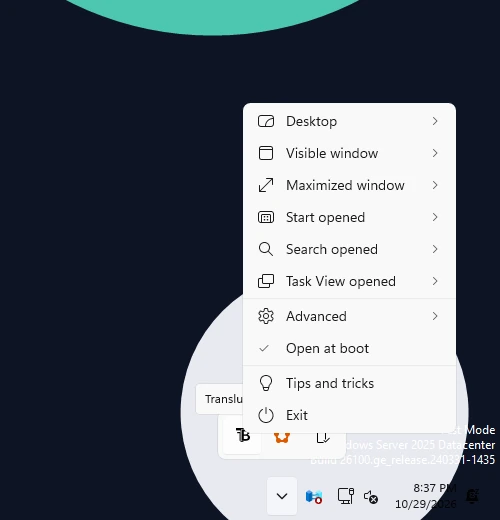
Real screenshot · TranslucentTB 2026.2 · Windows build 26100Step 3: right-click the icon to open the menu. How this was captured
Captured October 29, 2026 on Windows build 26100 in our hands-on test; only cropped and resized.
Open Desktop and pick Clear
Clear is the default; the dot shows the current choice.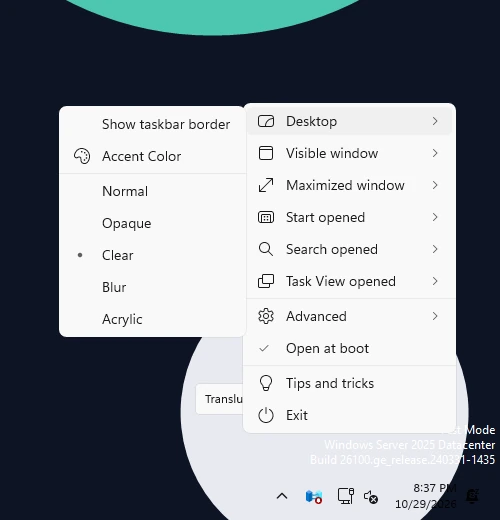
Real screenshot · TranslucentTB 2026.2 · Windows build 26100Step 4: open Desktop. The current look (Clear) has a dot; Accent Color opens the color picker. How this was captured
Captured October 29, 2026 on Windows build 26100 in our hands-on test; only cropped and resized.
Repeat for Visible window and Maximized window if you turned them on
Or leave them off, so the desktop look is used with windows open too.
FAQ
What is the difference between blur and acrylic in TranslucentTB?
Why is the Blur option missing on Windows 11?
Why is my opaque taskbar black?
#00000000 becomes solid black. Pick the color you want and use Clear if you want transparency.Does blur_radius work on Windows 10?
Can I make the taskbar a different color per app?
Keep going
Something wrong or out of date? Email hello@translucenttb.dev and we will fix it.