Guide · Windows 11
How to change the taskbar color in Windows 11
Windows 11 can color the taskbar with your accent color, but only in Dark mode, and only the one accent color. For any color, a color in Light mode, or a see-through color, use TranslucentTB. Both methods below were captured on a real Windows machine.
On this page
- The two methods at a glance
- Method 1: Windows Settings (accent color)
- Why "Show accent color on Start and taskbar" is greyed out
- Method 2: any color with TranslucentTB
- Change the taskbar color in Light mode
- Make the taskbar black
- Make it transparent instead
- Change the taskbar color without activating Windows
- Reset the taskbar color to default
- Windows 10
- FAQ
Short answer
How do I change the taskbar color in Windows 11?
Open Settings › Personalization › Colors, set Choose your mode to Dark (or Custom with Windows mode Dark), pick an Accent color, and turn on Show accent color on Start and taskbar. For any color in any mode, install TranslucentTB, right-click its tray icon, and choose Desktop › Opaque, then Accent Color.
Windows' own taskbar in Dark mode with Transparency effects on.

Dark mode with "Show accent color on Start and taskbar" on: Windows colors the taskbar with the accent color.

opaque with #1D4ED820: the alpha (20) is ignored and the bar is solid.

How these were captured
Captured October 29, 2026 on Windows build 26100 in our hands-on test; only cropped and resized. Settings used:
{ "desktop_appearance": { "accent": "opaque", "color": "#1D4ED820" } }The two methods at a glance
| Windows Settings | TranslucentTB | |
|---|---|---|
| Any color | Your accent color only | Any color |
| Works in Light mode | No, option greyed out | Yes |
| Transparency control | No | Alpha 0–100%, clear, blur, acrylic |
| Different color with a maximized window, Start open… | No | Yes, per state and per app |
| Also colors Start and window borders | Start, and optionally title bars | Taskbar only |
| Needs Windows activated | Yes | No (see below) |
| Install anything | No | Yes, free and open source |
Method 1: Windows Settings (accent color)
Open Personalization › Colors
Right-click the desktop, choose Personalize, then Colors. Or press Win+I and go to Personalization › Colors.Set Choose your mode to Dark
Pick Dark. If you want light apps, pick Custom and set Choose your default Windows mode to Dark and app mode to Light. The taskbar follows the Windows mode.Pick an accent color
Under Accent color, choose Manual and click a color, or View colors for a custom one. Automatic picks one from your wallpaper.Turn on Show accent color on Start and taskbar
The switch is in the Accent color section, below the color grid. The taskbar and Start change at once.
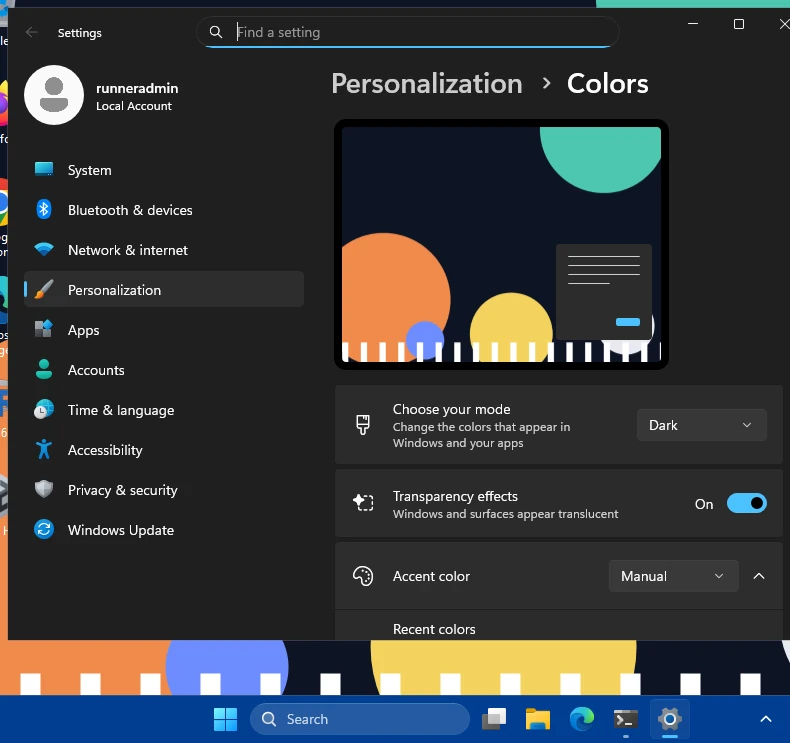
How this was captured
Captured October 29, 2026 on Windows build 26100 in our hands-on test; only cropped and resized.
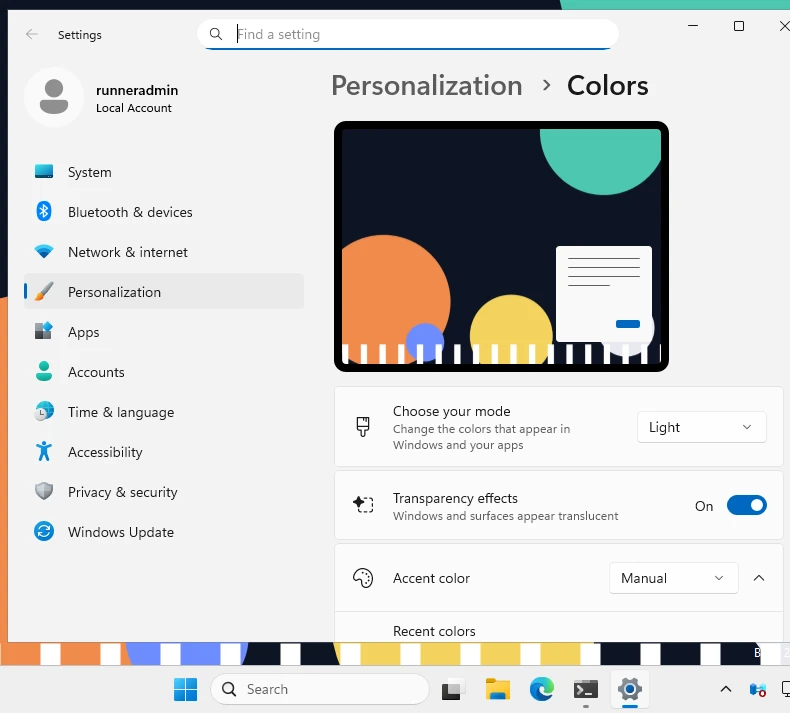
How this was captured
Captured October 29, 2026 on Windows build 26100 in our hands-on test; only cropped and resized.
On our test machine (build 26100) the option colored the taskbar with the accent color as soon as it was on:
Windows' own taskbar in Dark mode with Transparency effects on.
Dark mode with "Show accent color on Start and taskbar" on: Windows colors the taskbar with the accent color.
How these were captured
Captured October 29, 2026 on Windows build 26100 in our hands-on test; only cropped and resized. Settings used:
We turned the option on through its registry value (ColorPrevalence = 1 under HKCU\Software\Microsoft\Windows\CurrentVersion\Themes\Personalize), which is what the switch writes, and set the accent color the same way.
What the Windows setting can't do
- It only uses your accent color, which Windows also uses for buttons, links and highlights.
- It doesn't work in Light mode.
- No transparency control: the taskbar is either Windows' default or a solid accent color, with Windows' own slight translucency on PCs with a graphics card.
- It always colors Start too.
Why "Show accent color on Start and taskbar" is greyed out
Because Windows mode is set to Light. Windows only allows the accent color on Start and the taskbar when Choose your mode is Dark, or Custom with the default Windows mode set to Dark. Change that and the switch becomes available. If every option on the page is greyed out, Windows isn't activated or a work or school policy manages your PC.
Method 2: any color with TranslucentTB
TranslucentTB replaces the taskbar's background with your own color, so it doesn't depend on Windows' mode or accent color.
Install TranslucentTB
From the Microsoft Store, or withwinget install CharlesMilette.TranslucentTB. Start it and click Continue. Install guide.Right-click the tray icon and open Desktop
Choose Opaque for a solid color, or Clear for a see-through color.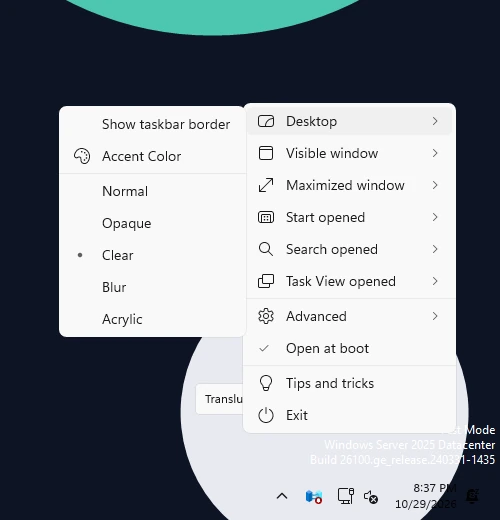
Real screenshot · TranslucentTB 2026.2 · Windows build 26100Step 4: open Desktop. The current look (Clear) has a dot; Accent Color opens the color picker. How this was captured
Captured October 29, 2026 on Windows build 26100 in our hands-on test; only cropped and resized.
Click Accent Color and pick your color
The color picker previews the color live on the taskbar. Its alpha slider sets the transparency (ignored for Opaque, which is always solid).Optional: different colors for other states
Each state in the menu (Visible window, Maximized window, Start opened…) has its own look and color, for example a dark taskbar only when a window is maximized.
opaque with #1D4ED820: the alpha (20) is ignored and the bar is solid.
clear with #1D4ED880: blue at 50% alpha, no blur.

How these were captured
Captured October 29, 2026 on Windows build 26100 in our hands-on test; only cropped and resized. Settings used:
{ "desktop_appearance": { "accent": "opaque", "color": "#1D4ED820" } }{ "desktop_appearance": { "accent": "clear", "color": "#1D4ED880" } }Prefer typing the color? In settings.json the color is #RRGGBBAA, with the alpha in the last two digits:
{
  "desktop_appearance": { "accent": "opaque", "color": "#1D4ED8FF" }
}
The settings builder lets you pick colors for every state over your own wallpaper and downloads a file TranslucentTB accepts. Color format and examples: appearance modes.
Change the taskbar color in Light mode
Windows can't, so use TranslucentTB: its color works in Light and Dark mode alike. One thing to keep in mind: Windows still draws the taskbar's icons and clock for the mode you're in. In Light mode they are dark, so pick a light or mid-tone color, or a transparent one over a light wallpaper, to keep them readable. TranslucentTB can't change the text or icon color.
Make the taskbar black
With Windows: switch Choose your mode to Dark; the default dark taskbar is near-black. For pure black, use TranslucentTB with Opaque and #000000FF, which also works in Light mode.
Make it transparent instead
Use TranslucentTB's Clear look with a color whose alpha is 00 for fully clear, or between 40 and C0 for a tinted glass look. Every method compared: how to make the taskbar transparent.
Change the taskbar color without activating Windows
On an unactivated copy of Windows, the Personalization pages are locked and show a message asking you to activate Windows, so Method 1 isn't available. TranslucentTB doesn't use those pages: it draws the taskbar color itself and stores its own settings. Based on how it works, it should work the same on an unactivated PC; we have not tested one ourselves.
Reset the taskbar color to default
- Windows Settings: turn off Show accent color on Start and taskbar. To go back to the light taskbar, set Choose your mode to Light.
- TranslucentTB: choose Desktop › Normal, or Exit from the tray menu; the taskbar returns to Windows' look right away. Advanced › Return to default settings resets all of TranslucentTB's looks.
Windows 10
Windows 10 works the same way: Settings › Personalization › Colors, set the default Windows mode to Dark, then check Start, taskbar, and action center under "Show accent color on the following surfaces". TranslucentTB also runs on Windows 10 (version 1903 or later) and gives you any color there too. Windows 10 guide.
FAQ
Can I change the taskbar color in Windows 11 without dark mode?
Why can't I change my taskbar color in Windows 11?
How do I change only the taskbar color, not the Start menu?
Can I make the taskbar a color and transparent at the same time?
#1D4ED880 for 50% blue.How do I change the taskbar text or icon color?
Is there a registry setting for the taskbar color?
ColorPrevalence under HKCU\Software\Microsoft\Windows\CurrentVersion\Themes\Personalize, and it still only works with Dark mode and your accent color. Using the Settings page is simpler.Does changing the taskbar color affect performance?
How do I get the default taskbar color back?
Keep going
Something wrong or out of date? Email hello@translucenttb.dev and we will fix it.