Docs · interface
The TranslucentTB tray menu, item by item
TranslucentTB has no main window. Everything you can change without editing settings.json is in the menu of its tray icon, plus one global keyboard shortcut. This page lists every item in version 2026.2, what it does, and when Windows hides it.
On this page
Short answer
How do I open the TranslucentTB menu?
Click the TranslucentTB icon in the notification area (system tray), with either mouse button. If you cannot see it, click the ^ arrow to show hidden icons. You can also focus the icon with the keyboard (Win+B, then arrow keys) and press Enter.
The whole menu at a glance
Some items only exist on certain setups. Choose yours to see exactly what appears:
And the real menu, captured in our Windows test on Windows build 26100:
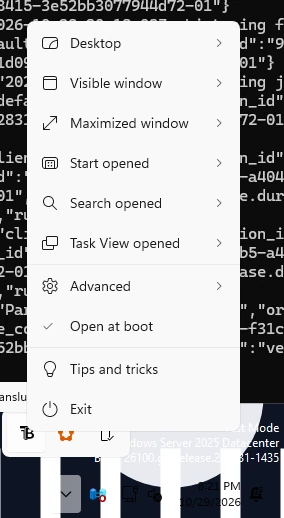
How this was captured
Captured October 29, 2026 on Windows build 26100 in our hands-on test; only cropped and resized.
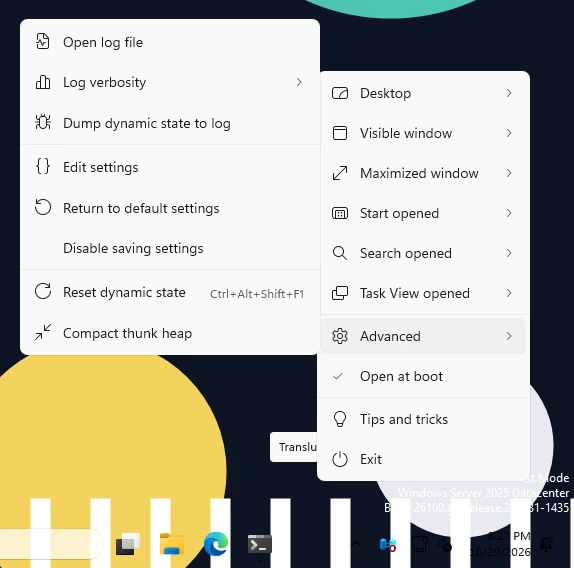
How this was captured
Captured October 29, 2026 on Windows build 26100 in our hands-on test; only cropped and resized.
Main menu
Visible window ›
Advanced ›
Rebuilt from Xaml/Pages/TrayFlyoutPage.xaml and its English strings in 2026.2. Checkmarks show an example state. Pick your setup above to see which items Windows will show you.
The seven state submenus
The first block of the menu has one submenu per taskbar state: Desktop, Visible window, Maximized window, Start opened, Search opened, Task View opened and Battery saver. Each one edits the matching block in settings.json. Which state is shown when is explained in Dynamic modes.
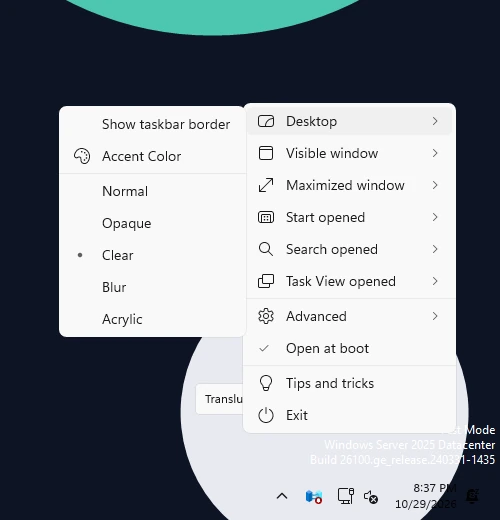
How this was captured
Captured October 29, 2026 on Windows build 26100 in our hands-on test; only cropped and resized.
| Item | What it does | settings.json key | Shown |
|---|---|---|---|
| Enabled | Turns the state on or off. Desktop has no Enabled item because it is the fallback and is always on. | enabled | All states except Desktop |
| Show Desktop Peek Button | Shows or hides the thin "show desktop" button at the far right of the taskbar while this state is active. Hidden, it still works, just invisibly. | show_peek | Classic taskbar only (Windows 10) |
| Show taskbar border | Shows or hides the one-pixel line along the top edge of the Windows 11 taskbar. | show_line | Windows 11 XAML taskbar only (22H2 and later) |
| Accent Color | Opens the color picker for this state. | color | Always |
| Normal · Opaque · Clear · Blur · Acrylic | The look. Exactly one is selected. | accent | Blur is hidden where it is not supported |
Two submenus can be missing entirely:
- Battery saver only appears on a PC with a battery (the flyout binds it to
SystemHasBattery). On a desktop PC you can still set it in settings.json, it just never triggers. - Blur is hidden on Windows 11 21H2 builds before 22000.282 and on the early 22H2 taskbar that still used two XAML islands. On those systems TranslucentTB converts any
blurin your settings toacrylicwhen it starts. It is shown on Windows 10 and on the Windows 11 XAML taskbar. Details in Appearance modes.
The color picker
Accent Color opens a separate color picker window for that state. It has a color spectrum, sliders, a hex field and an alpha (transparency) control. While the picker is open, the taskbar previews the color live, so you see the result on your real wallpaper before you commit.
- Confirm with the check button, or cancel to throw the change away.
- If you close the window with unsaved changes, it asks: Do you want to save changes to the color? with Yes, No and Cancel.
- The pin button in its title bar (Always on top) keeps it above other windows while you compare against an app.
The picker writes the color as #RRGGBBAA, with alpha last. Alpha has no effect with Opaque (always 100%) or Normal (color ignored).
The Advanced submenu
| Item | What it really does (from the 2026.2 source) |
|---|---|
| Open log file | Opens the current log file. Grayed out until something has been written to the log in this session. Logs live in %LOCALAPPDATA%\Packages\28017CharlesMilette.TranslucentTB_v826wp6bftszj\TempState\ for the Store and App Installer versions and in %TEMP%\TranslucentTB\ for the portable version, one file per run. |
| Log verbosity › | Trace, Debug, Information, Warning, Error, Critical, Off. Saved as verbosity. The default in release builds is Warning ("warn"). Raise it to Debug or Trace before reproducing a problem for a bug report. |
| Dump dynamic state to log | Writes TranslucentTB's current view of the world to the log: every taskbar and monitor, the maximized and normal windows it is tracking, whether Aero Peek, Task View, Start, Search and battery saver are active, the focused window and the detected taskbar type (Classic, Mixed or XAML). The most useful thing to attach to a bug report. |
| Edit settings | First saves the settings TranslucentTB is currently using to settings.json, then opens the file in the app Windows associates with .json files. Changes you save apply about 200 ms later. |
| Return to default settings | Replaces every setting with the built-in defaults immediately. The file itself is rewritten the next time TranslucentTB saves, which happens when you exit or choose Edit settings. |
| Disable saving settings | Stops TranslucentTB from writing settings.json, so menu changes only last until you exit. Saved as disable_saving. Useful when you maintain the file by hand and do not want the app to reformat it or drop your comments. |
| Reset dynamic state | Throws away what TranslucentTB knows about open windows, Start, Search, Task View, Aero Peek and battery saver, finds the taskbars again and re-applies the right look. Same as Ctrl+Alt+Shift+F1. |
| Compact thunk heap | A memory-housekeeping command for developers. TranslucentTB uses small generated code stubs ("thunks") to route Windows callbacks to its objects; this frees memory pages that no longer hold any. It does not change how the taskbar looks. |
The reset hotkey: Ctrl+Alt+Shift+F1
Short answer
How do I reset TranslucentTB without restarting it?
Press Ctrl+Alt+Shift+F1 anywhere. It does the same as Advanced › Reset dynamic state.
Version 2026.2 added this as a global hotkey (pull request #1306). TranslucentTB registers it with Windows' RegisterHotKey when it starts, with auto-repeat suppressed, so holding the keys triggers it once. Use it when the taskbar is stuck in the wrong look, for example:
- the taskbar stays opaque after you closed a maximized window;
- transparency is lost after sleep, lock or a display change;
- a second monitor's taskbar stopped following its state.
If another app already owns Ctrl+Alt+Shift+F1, registration fails and TranslucentTB only logs a warning (Unable to register global hotkey for dynamic state reset). The menu item still works. In older versions, there is no hotkey: use the menu item or start TranslucentTB again (see below).
ttb.exe and starting it twice
The Store, winget and App Installer versions register an app execution alias called ttb.exe (declared in the package manifest). It starts TranslucentTB.exe, so you can launch it from Run (Win+R), Command Prompt, PowerShell or a script:
ttbThe alias takes no options. The portable zip has no alias; run TranslucentTB.exe from its folder instead. If ttb is "not recognized", check Settings › Apps › Advanced app settings › App execution aliases and make sure TranslucentTB's entry is on.
TranslucentTB runs as a single instance (it holds a named mutex). When you start it while it is already running, the new copy exits right away and tells the running one, which then:
- brings the welcome window to the front, if it is still open; otherwise
- shows the notification TranslucentTB is already running! Right-click on the tray icon to access it. and resets its dynamic state, exactly like the hotkey.
So running ttb again is a handy reset on any version. When Windows itself starts TranslucentTB at sign-in through its startup task and a copy is already running, the notification is suppressed.
Open at boot, Tips and tricks, Exit
- Open at boot toggles the Windows startup task. It only exists in the Store and App Installer versions, and it is grayed out when a policy controls startup apps. See Open at boot, including the fix for a grayed-out toggle.
- Tips and tricks opens the official tips page on
TranslucentTB.github.io. - Exit saves settings.json (unless saving is disabled) and quits. Your taskbar returns to Windows' default look.
There is no About item in 2026.2: it exists in the source but is commented out of the menu.
Old-style or new-style menu
The menu is a XAML flyout that follows Windows' light or dark theme. On builds where XAML menus misbehave, TranslucentTB draws the same items as a classic Win32 menu instead. In 2026.2 the XAML menu is used on Windows 10 22H2 (build 19045) and later, including Windows 11, and on Windows 10 2004 to 21H2 once update KB5007253 is installed (revision 1387 or later). Older builds get the classic menu.
To force one or the other, add "use_xaml_context_menu": true or false to settings.json. Leave the key out to let TranslucentTB decide.
If the tray icon is missing
Check the hidden icons
Click the ^ arrow in the notification area. To keep the icon visible, turn TranslucentTB on under Settings › Personalization › Taskbar › Other system tray icons (Windows 11).
Check that it is running
Look for
TranslucentTB.exein Task Manager. If it is not there, start it from the Start menu or runttb.Check hide_tray
settings.json supports
"hide_tray": true, which removes the icon completely. Open%LOCALAPPDATA%\Packages\28017CharlesMilette.TranslucentTB_v826wp6bftszj\RoamingState\settings.jsonin Notepad (portable: settings.json next to the .exe), set it tofalseor delete the line, and save. The icon comes back without a restart.
On the very first run the icon stays hidden until you click Continue in the welcome window.
FAQ
Is there a keyboard shortcut for TranslucentTB?
Why is Blur missing from my menu?
Why don't I see Show taskbar border or Show Desktop Peek Button?
Why is Battery saver missing?
Why is Open at boot missing?
Where are the logs?
%LOCALAPPDATA%\Packages\28017CharlesMilette.TranslucentTB_v826wp6bftszj\TempState\. Portable: %TEMP%\TranslucentTB\. Use Advanced › Open log file to open the current one.Keep going
Something wrong or out of date? Email hello@translucenttb.dev and we will fix it.