Guide
TranslucentTB best settings: 9 ready-made looks
There is no single best setting, but there are a handful of looks almost everyone wants. Each one below has the exact settings.json keys, checked with the same parser TranslucentTB 2026.2 uses, and a link that opens it in our settings builder so you can preview it on your own wallpaper first.
On this page
- How to apply a look
- 1. Fully invisible taskbar
- 2. Frosted glass everywhere
- 3. Clear on the desktop, solid when a window is maximized
- 4. Clear desktop, blur with windows, acrylic when maximized
- 5. Tinted glass in your color
- 6. Pure black for OLED screens
- 7. Laptop: a plain look in battery saver
- 8. Gaming: ignore the launcher
- 9. Windows' own look while Start or Search is open
- Combining looks
- FAQ
Short answer
What are the best TranslucentTB settings?
How to apply a look
Open your settings file
Right-click the TranslucentTB tray icon and choose Advanced › Edit settings. TranslucentTB saves its current settings and opens the file.Merge the keys
Replace the matching blocks with the ones shown, or paste them in. You only need the keys a look changes; everything you leave out keeps its current value. If you prefer, use Open this look in the settings builder and download a complete file instead.Save
TranslucentTB reloads the file about 200 ms after you save. If the taskbar does not change and a dialog appears, the file has an error: paste it into the validator.
1. Fully invisible taskbar
The taskbar background disappears completely; only the icons, the clock and the tray stay. This is also TranslucentTB's default desktop look, but by turning both window states off it stays invisible when windows are open or maximized too.
clear with #00000000: the taskbar background is gone.

How these were captured
Captured October 29, 2026 on Windows build 26100 in our hands-on test; only cropped and resized. Settings used:
{ "desktop_appearance": { "accent": "clear", "color": "#00000000" } }{
"desktop_appearance": {
"accent": "clear",
"color": "#00000000"
},
"visible_window_appearance": {
"enabled": false
},
"maximized_window_appearance": {
"enabled": false
}
}Open this look in the settings builder
2. Frosted glass everywhere
A soft blur that keeps the wallpaper's colors but makes icons easier to read than a fully clear bar. On the Windows 11 taskbar, blur_radius 30 gives a Gaussian blur with a standard deviation of 10 pixels. On Windows 10 the blur strength is fixed and blur_radius is ignored.
blur with blur_radius 30: shapes become soft.

How these were captured
Captured October 29, 2026 on Windows build 26100 in our hands-on test; only cropped and resized. Settings used:
{ "desktop_appearance": { "accent": "blur", "color": "#00000010", "blur_radius": 30 } }{
"desktop_appearance": {
"accent": "blur",
"color": "#00000010",
"blur_radius": 30
},
"visible_window_appearance": {
"enabled": false
},
"maximized_window_appearance": {
"enabled": false
}
}Open this look in the settings builder
3. Clear on the desktop, solid when a window is maximized
The most popular dynamic setup: see your wallpaper when nothing is open, and get a calm solid bar behind full-screen work. The Maximized window state is off by default, so it has to be enabled.
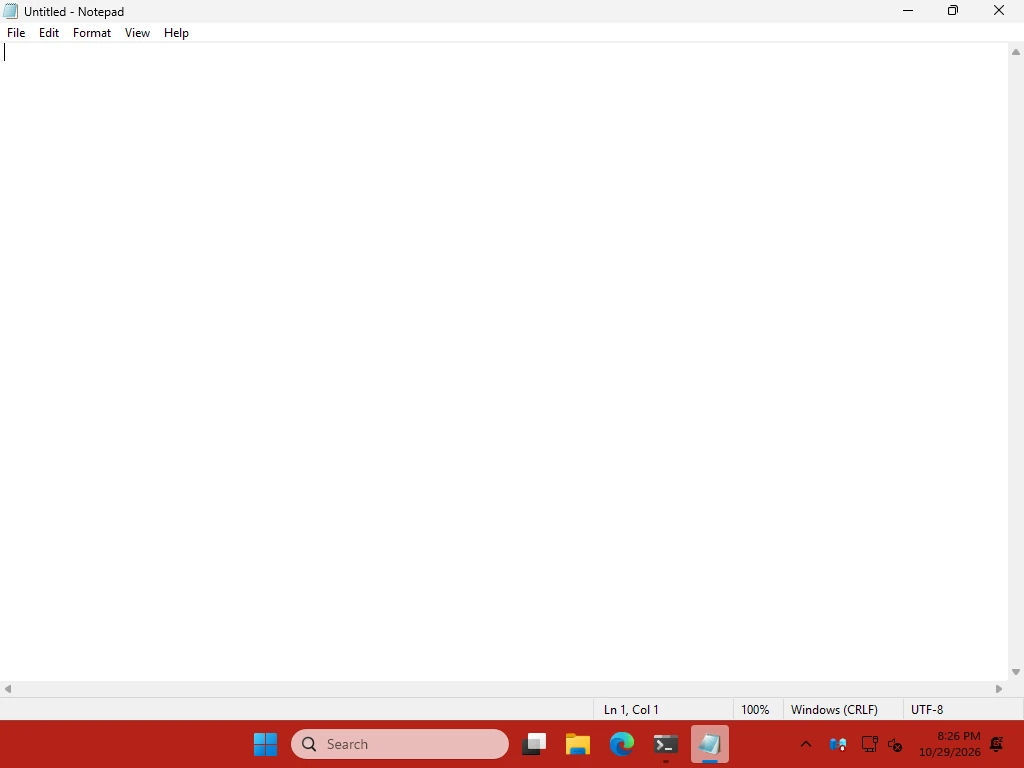
How this was captured
Captured October 29, 2026 on Windows build 26100 in our hands-on test; only cropped and resized. Settings used:
{ "maximized_window_appearance": { "enabled": true, "accent": "opaque", "color": "#B42318FF" } }{
"desktop_appearance": {
"accent": "clear",
"color": "#00000000"
},
"maximized_window_appearance": {
"enabled": true,
"accent": "opaque",
"color": "#1B1E26FF"
}
}Open this look in the settings builder
4. Clear desktop, blur with windows, acrylic when maximized
Three steps of privacy: invisible on the desktop, blurred while a normal window is open, and acrylic behind a maximized window. Because the maximized state has a higher priority than the visible-window state, a maximized window always wins (see the priority order).
desktop clearwindow open blur 30maximized acrylic{
"desktop_appearance": {
"accent": "clear",
"color": "#00000000"
},
"visible_window_appearance": {
"enabled": true,
"accent": "blur",
"color": "#00000020",
"blur_radius": 30
},
"maximized_window_appearance": {
"enabled": true,
"accent": "acrylic",
"color": "#00000040"
}
}Illustration drawn in your browser. Acrylic needs a graphics card: on our GPU-less test machine it showed as fully transparent (details).
Open this look in the settings builder
5. Tinted glass in your color
Your color at half strength, with no blur, so the wallpaper shows through. Colors are #RRGGBBAA: the last two digits are the opacity (80 is 50%). Change 1D4ED8 to any color; the color converter helps if you have an ARGB value.
clear with #1D4ED880: blue at 50% alpha, no blur.

How these were captured
Captured October 29, 2026 on Windows build 26100 in our hands-on test; only cropped and resized. Settings used:
{ "desktop_appearance": { "accent": "clear", "color": "#1D4ED880" } }{
"desktop_appearance": {
"accent": "clear",
"color": "#1D4ED880"
}
}Open this look in the settings builder
6. Pure black for OLED screens
A solid black bar everywhere. On an OLED panel, black pixels are switched off, so this is the darkest look possible. It does not prevent burn-in from the icons and the clock, which stay lit; Windows' "Automatically hide the taskbar" setting is the only option that removes them.
opaque #000000FF illustrationfor comparison: clear illustration{
"desktop_appearance": {
"accent": "opaque",
"color": "#000000FF"
},
"visible_window_appearance": {
"enabled": false
},
"maximized_window_appearance": {
"enabled": false
}
}Open this look in the settings builder
7. Laptop: a plain look in battery saver
When Windows battery saver (energy saver) turns on, this switches the taskbar to a plain dark color, whatever the other states say. Battery saver has the highest priority of all states. TranslucentTB only shows the Battery saver menu item on PCs that have a battery, but the setting works from settings.json either way. We did not measure battery life; a solid color simply avoids asking Windows to blur anything.
battery saver on opaque #202020FFbattery saver off your normal look{
"battery_saver_appearance": {
"enabled": true,
"accent": "opaque",
"color": "#202020FF"
}
}Open this look in the settings builder
8. Gaming: ignore the launcher
If you use dynamic states, a launcher window can switch the taskbar look while you play or wait for a game. Listing its process in ignored_windows makes TranslucentTB act as if the window were not there. Use the exact .exe names from Task Manager › Details; Steam's windows usually belong to steam.exe or steamwebhelper.exe. Full-screen games cover the taskbar anyway. For what TranslucentTB costs while you play, see performance.
{
  "ignored_windows": {
    "process_name": [
      "steam.exe",
      "steamwebhelper.exe"
    ]
  }
}
Open this look in the settings builder
9. Windows' own look while Start or Search is open
Start and Search sit right above the taskbar. With these two states on, the taskbar returns to Windows' default look while either is open, which some people find easier to read. They are on by default on Windows 10 and off on Windows 11.
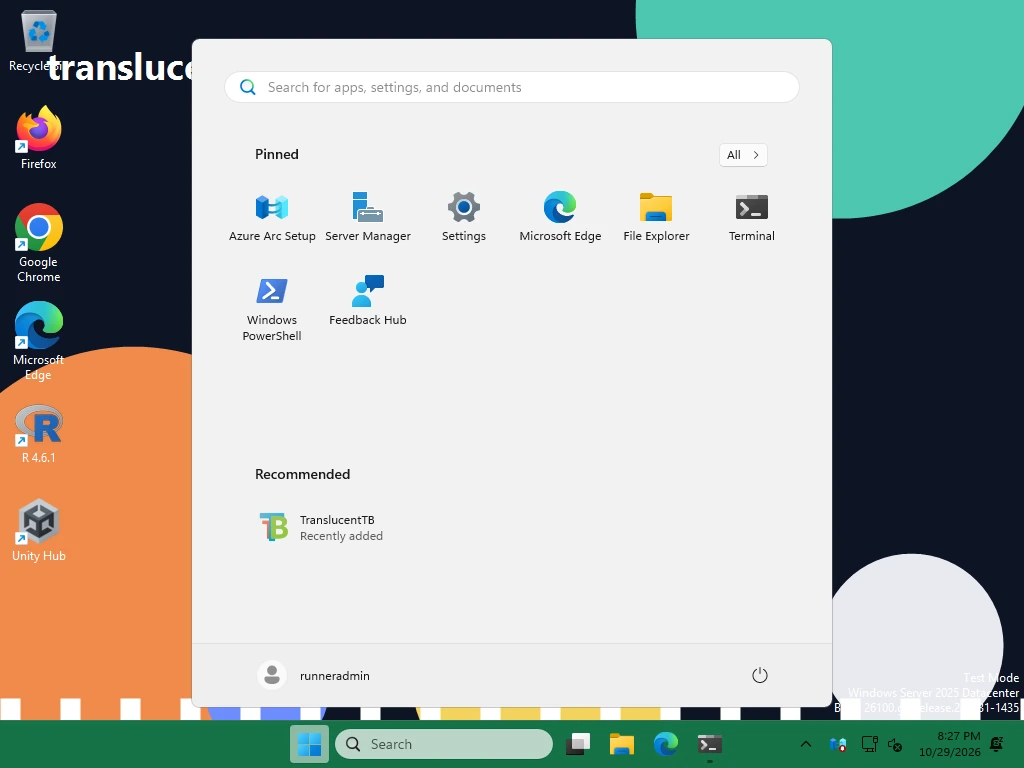
How this was captured
Captured October 29, 2026 on Windows build 26100 in our hands-on test; only cropped and resized. Settings used:
{ "start_opened_appearance": { "enabled": true, "accent": "opaque", "color": "#157347FF" } }{
"start_opened_appearance": {
"enabled": true,
"accent": "normal"
},
"search_opened_appearance": {
"enabled": true,
"accent": "normal"
}
}Open this look in the settings builder
Combining looks
Looks touch different keys, so most of them combine. For example, look 3 plus look 7 plus look 8 gives a clear desktop, a solid bar behind maximized windows, a plain bar in battery saver, and no switching while Steam is open. When two looks set the same key, the one you paste last wins. The settings builder shows the result of every state before you save.
FAQ
What is the best TranslucentTB setting for Windows 11?
blur_radius around 30 for the desktop (look 2).Which look is easiest on performance?
My settings reset when I pasted a look. Why?
Can I share my settings with a friend?
Keep going
Something wrong or out of date? Email hello@translucenttb.dev and we will fix it.