Original research
We installed TranslucentTB 2026.2 and tested it on Windows
Everything on this page comes from our own test runs: we installed the official release on a Windows machine, changed every setting through settings.json, and captured the screen, the app's own log and its measurements. The screenshots are not mock-ups, and the raw files are linked at the end.
On this page
- The test machine
- Results at a glance
- What the tests changed on this site
- First run
- The looks, on a real taskbar
- Dynamic states and rules
- The error dialogs
- The tray menu
- Memory, CPU and what loads into Explorer
- Uninstalling while it runs
- The portable build
- Install, signature and uninstall, step by step
- Raw files
- Questions
Short answer
What did we find?
- All five looks, the dynamic states and per-app rules behave as the source code says. Two details we had to correct on this site came from these tests.
- The official downloads match the hashes on our download page when computed on Windows, and the .exe signature is valid.
- TranslucentTB used about 14 MB of private memory and 0 ms of CPU over 10 idle seconds.
- Uninstalling while it runs restarts Explorer, and the taskbar goes back to normal.
The test machine
We do not have a farm of Windows PCs, so we used a clean Windows virtual machine from GitHub Actions (the windows-2025 image). Each run starts from a fresh install, which makes the results repeatable: anyone can run the same script and get the same machine.
| Windows | Windows Server 2025 Datacenter, build 26100.33650, DisplayVersion 24H2. Same build and taskbar code as Windows 11 24H2. Explorer had Taskbar.dll loaded, so TranslucentTB used its Windows 11 XAML-taskbar path. |
|---|---|
| TranslucentTB | 2026.2 (file version 2026.2.0.d4636e4), installed from the official bundle.msixbundle on GitHub, plus the portable zip. |
| Screen | 1024 × 768 for the test runs and 1600 × 900 for the guide runs; one monitor, Microsoft Hyper-V Video adapter (no GPU), no battery. |
| Dates | October 29, 2026: four runs (core tests, follow-up tests, and two runs of step-by-step guide screenshots). |
| Method | A PowerShell script installs the app, writes settings.json, opens windows and menus, presses keys, and saves screenshots with Graphics.CopyFromScreen. Images are only cropped and resized. The script is linked under Raw files. |
Results at a glance
| What we checked | Result | Evidence |
|---|---|---|
| Official files match our published SHA-256 | Yes, all three | hashes, winget's manifest lists the same bundle hash |
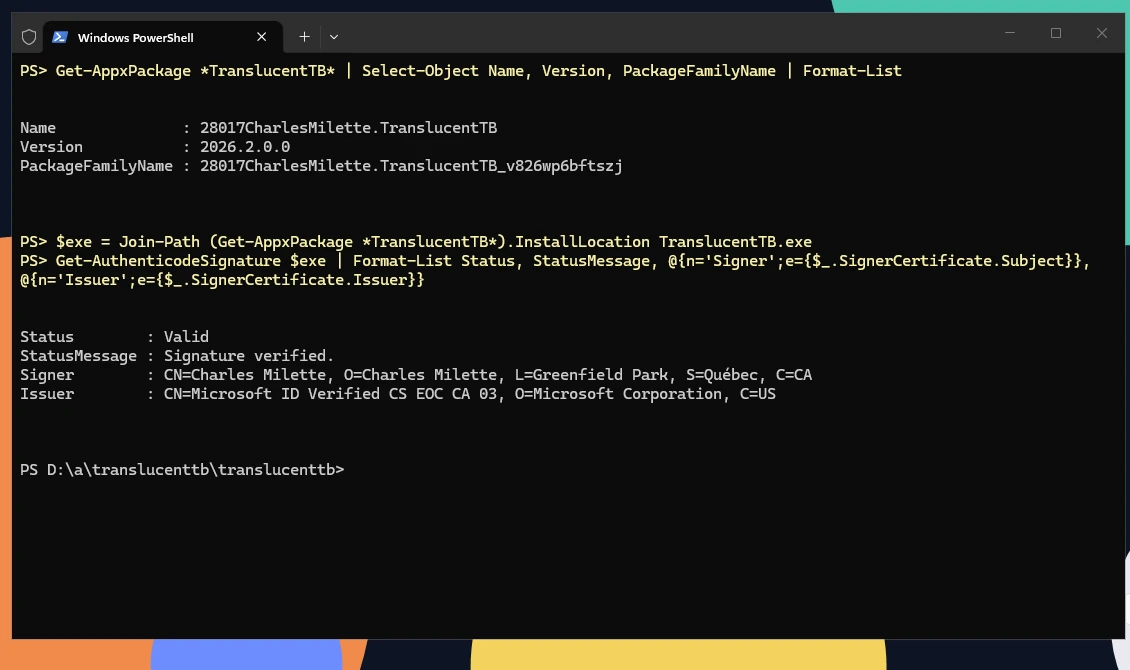
| TranslucentTB.exe signature | Valid, "Charles Milette", issued by Microsoft ID Verified CS EOC CA 03 | Get-AuthenticodeSignature |
| Package name and settings folder | 28017CharlesMilette.TranslucentTB_v826wp6bftszj, settings.json in RoamingState | folder listing |
| Default settings file | Identical, byte for byte, to what our builder writes | the app's own file |
| Opaque ignores alpha | Confirmed | screenshot |
| blur_radius changes blur strength (0 to 750) | Confirmed | screenshots |
| Acrylic | Drawn transparent on this machine (no GPU) | explanation |
| Maximized, visible-window and Start states | Switch the taskbar as configured | screenshots |
| Rules match process names in any case | "Notepad.exe" matched notepad.exe | screenshot |
| Invalid settings show a dialog | Exact text recorded | screenshots |
| Second launch brings back a hidden tray icon | No. Setting hide_tray to false does. | measurements |
| Memory and CPU | 14 MB private, 65 MB working set, 0 ms CPU idle | details |
| Uninstall while running | Explorer restarted, taskbar back to normal, package folder removed | screenshots |
| Portable build on build 26100 | Runs, settings.json next to the .exe | screenshot |
What the tests changed on this site
We wrote most of this site by reading TranslucentTB's source code. Testing on Windows caught two things we had wrong, and we fixed them everywhere they appeared:
- The Maximized window state is off by default. We had read the defaults in
Config.hppas "on". The settings.json TranslucentTB wrote on first run says"enabled": false, and the screenshots agree: with default settings, a maximized window leaves the taskbar clear. Our tools now generate a default file identical to the app's, and a test checks that on every build. - Starting TranslucentTB again does not bring back a hidden tray icon. With
"hide_tray": true, a second launch only notifies the running copy. Setting it back to false shows the icon immediately.
First run
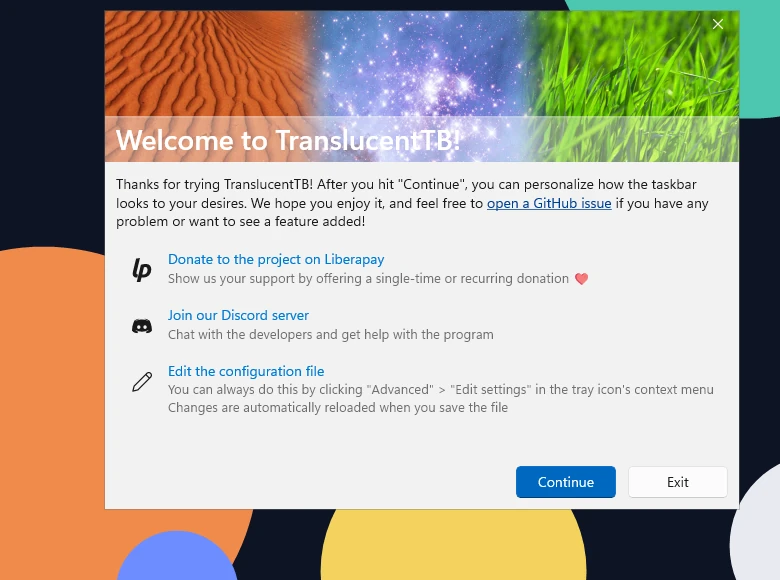
How this was captured
Captured October 29, 2026 on Windows build 26100 in our hands-on test; only cropped and resized.
Clicking Continue wrote settings.json into the package's RoamingState folder and applied the default look. The taskbar went clear immediately:
Windows' own taskbar before TranslucentTB starts.

Right after the first run: the default Desktop look, clear with #00000000.

How these were captured
Captured October 29, 2026 on Windows build 26100 in our hands-on test; only cropped and resized. Settings used:
{ "desktop_appearance": { "accent": "clear", "color": "#00000000" } }The looks, on a real taskbar
Each strip is the bottom of the screen a few seconds after we saved a new desktop_appearance. TranslucentTB reloaded the file on its own each time; we never restarted it. The wallpaper has hard-edged shapes and white bars behind the taskbar so you can see what each look does to them.
clear with #00000000: the taskbar background is gone.

clear with #1D4ED880: blue at 50% alpha, no blur.

opaque with #1D4ED820: the alpha (20) is ignored and the bar is solid.

normal: TranslucentTB hands the taskbar back to Windows.

clear with show_line true: the thin border line along the top edge is visible.

How these were captured
Captured October 29, 2026 on Windows build 26100 in our hands-on test; only cropped and resized. Settings used:
{ "desktop_appearance": { "accent": "clear", "color": "#00000000" } }{ "desktop_appearance": { "accent": "clear", "color": "#1D4ED880" } }{ "desktop_appearance": { "accent": "opaque", "color": "#1D4ED820" } }{ "desktop_appearance": { "accent": "normal", "color": "#00000000" } }{ "desktop_appearance": { "accent": "clear", "color": "#00000000", "show_line": true } }Blur strength
On the Windows 11 taskbar, TranslucentTB passes blur_radius ÷ 3 to a Gaussian blur. The four strips show 0 (no blur), 9 (the default), 30 and 750 (the maximum).
blur with blur_radius 0: no blur at all.

blur with the default blur_radius 9: a light blur.

blur with blur_radius 30: shapes become soft.

blur with blur_radius 750 (the maximum): colors average out.

How these were captured
Captured October 29, 2026 on Windows build 26100 in our hands-on test; only cropped and resized. Settings used:
{ "desktop_appearance": { "accent": "blur", "color": "#00000010", "blur_radius": 0 } }{ "desktop_appearance": { "accent": "blur", "color": "#00000010", "blur_radius": 9 } }{ "desktop_appearance": { "accent": "blur", "color": "#00000010", "blur_radius": 30 } }{ "desktop_appearance": { "accent": "blur", "color": "#00000010", "blur_radius": 750 } }Acrylic on a machine without a GPU
acrylic on our test machine, which has no GPU (Hyper-V video): Windows does not draw acrylic there, so the bar showed as fully transparent.

How these were captured
Captured October 29, 2026 on Windows build 26100 in our hands-on test; only cropped and resized. Settings used:
{ "desktop_appearance": { "accent": "acrylic", "color": "#00000000" } }Acrylic came out fully transparent in every run, including after we turned on Transparency effects. The machine has only the Hyper-V video adapter. The most likely explanation: when Windows cannot draw XAML acrylic, the brush falls back to a flat fallback color, and TranslucentTB does not set one, so you see straight through. The blur accent uses a different brush and worked. On a normal PC with a graphics card, acrylic draws as frosted glass. If acrylic looks clear on your PC, check Settings › Personalization › Colors › Transparency effects, battery saver and remote-desktop sessions, or use blur instead.
Dynamic states and rules
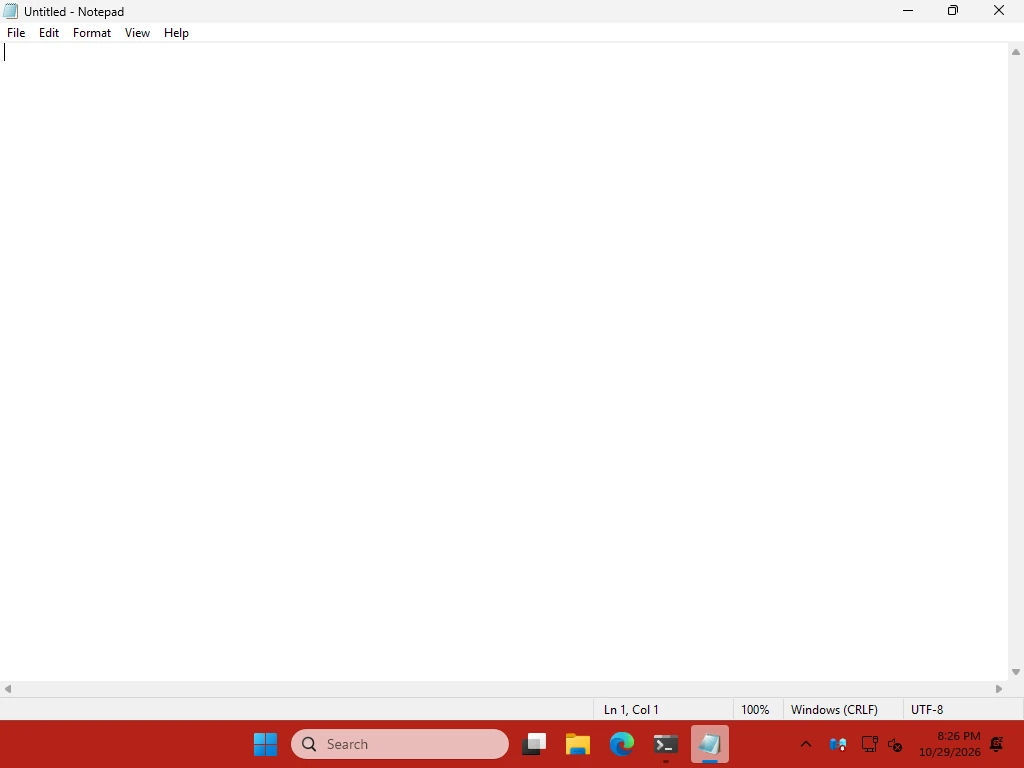
How this was captured
Captured October 29, 2026 on Windows build 26100 in our hands-on test; only cropped and resized. Settings used:
{ "maximized_window_appearance": { "enabled": true, "accent": "opaque", "color": "#B42318FF" } }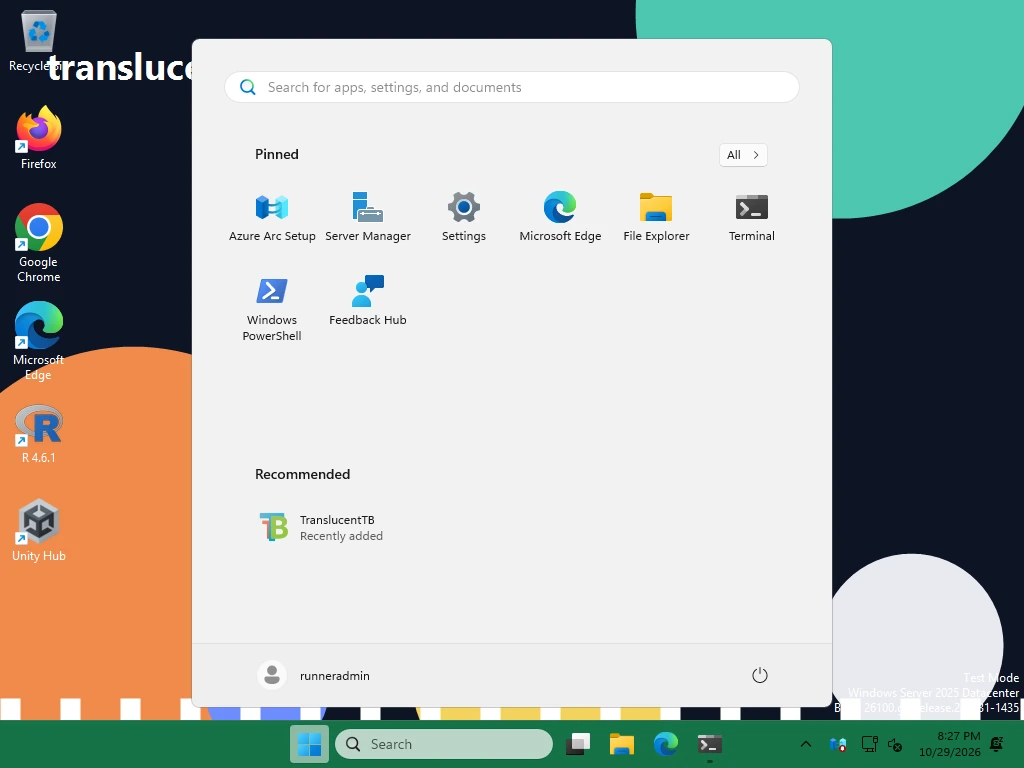
How this was captured
Captured October 29, 2026 on Windows build 26100 in our hands-on test; only cropped and resized. Settings used:
{ "start_opened_appearance": { "enabled": true, "accent": "opaque", "color": "#157347FF" } }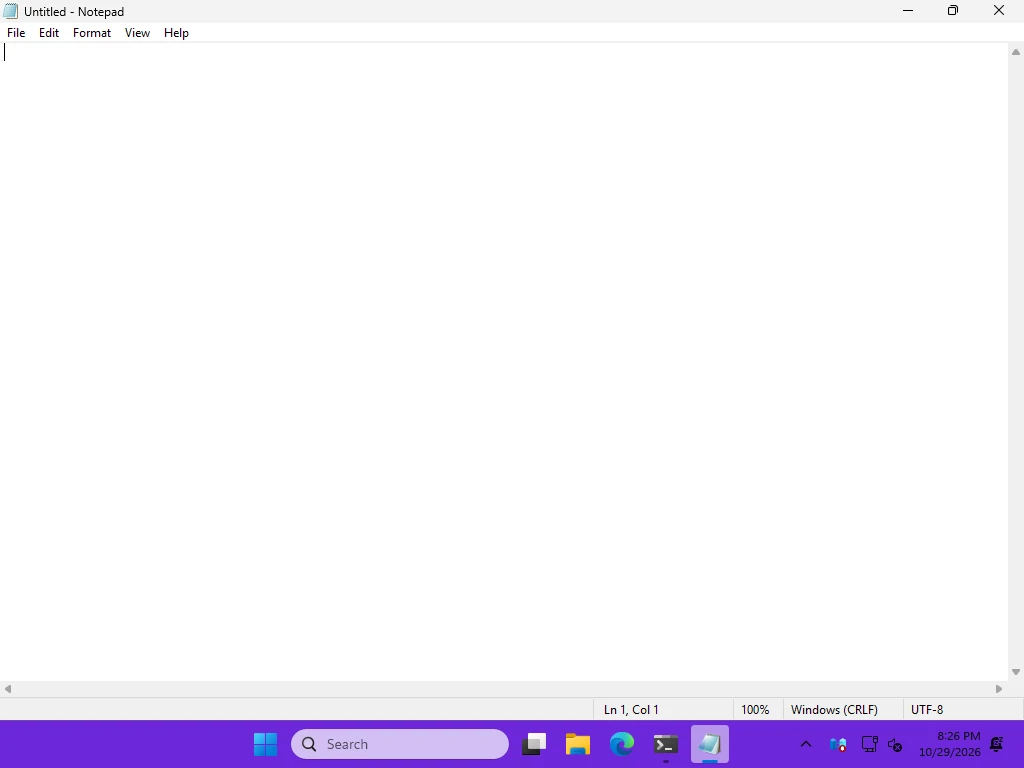
How this was captured
Captured October 29, 2026 on Windows build 26100 in our hands-on test; only cropped and resized. Settings used:
{ "maximized_window_appearance": { "enabled": true, "accent": "opaque", "color": "#B42318FF",
  "rules": { "process_name": { "Notepad.exe": { "accent": "opaque", "color": "#6D28D9FF" } } } } }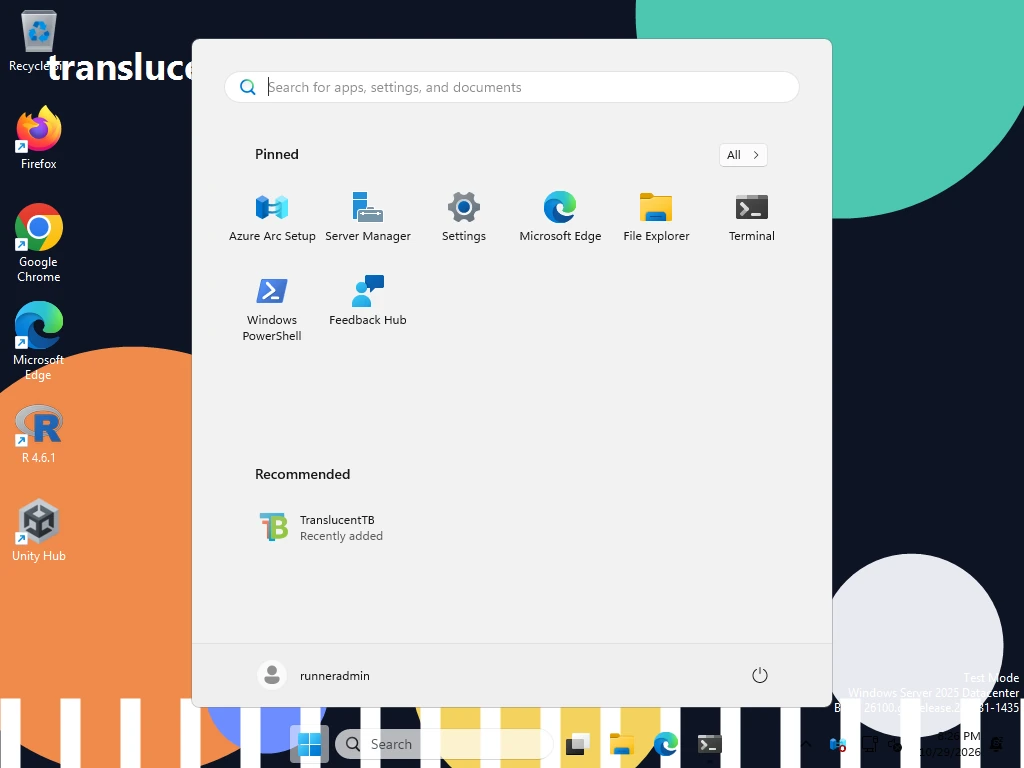
How this was captured
Captured October 29, 2026 on Windows build 26100 in our hands-on test; only cropped and resized.
Default settings with Notepad maximized: still clear, because the Maximized window state is off by default.

How these were captured
Captured October 29, 2026 on Windows build 26100 in our hands-on test; only cropped and resized. Settings used:
TranslucentTB's debug log shows how it sees each window, which is the easiest way to find the values for a rule. With "verbosity": "debug" it logged:
[debug] Changed foreground window to 0x2024e [Untitled - Notepad] [Notepad] [notepad.exe]
[debug] Inserting maximised window 0x2024e [Untitled - Notepad] [Notepad] [notepad.exe] to monitor 0x10001
[debug] Start menu opened on monitor 0x10001
[debug] Resetting worker state
The three bracketed values are the window title, the window class and the process name: exactly the three things rules can match.
The error dialogs
We saved two broken files on purpose. Both times TranslucentTB showed a warning dialog titled with its full version and loaded defaults for every setting. The log recorded the same text, for example Failed to deserialize JSON document (Found invalid enum string "Acrylic" while deserializing key "accent").
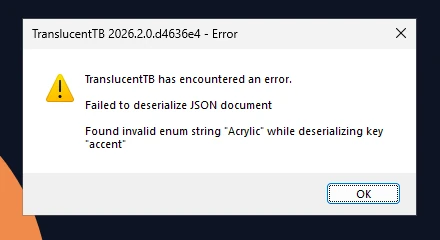
How this was captured
Captured October 29, 2026 on Windows build 26100 in our hands-on test; only cropped and resized. Settings used:
{ "desktop_appearance": { "accent": "Acrylic", "color": "#00000000" } }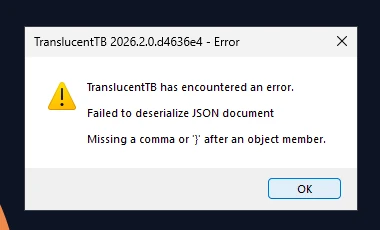
How this was captured
Captured October 29, 2026 on Windows build 26100 in our hands-on test; only cropped and resized. Settings used:
{ "desktop_appearance": { "accent": "clear", "color": "#00000000" } "oops": 1 }Our settings validator reports the same messages for the same files.
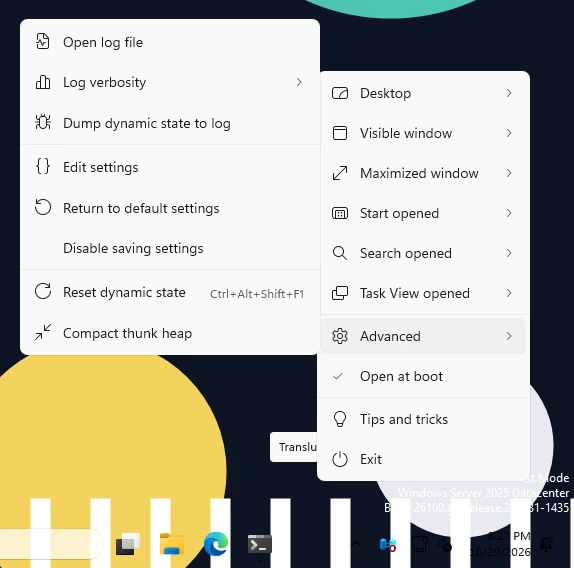
The tray menu
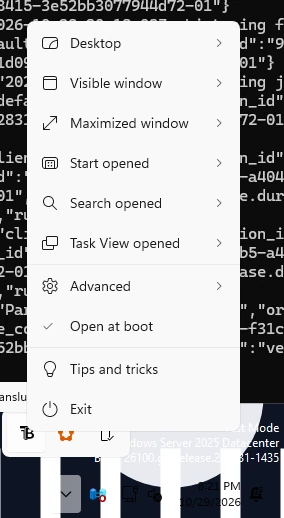
How this was captured
Captured October 29, 2026 on Windows build 26100 in our hands-on test; only cropped and resized.
How this was captured
Captured October 29, 2026 on Windows build 26100 in our hands-on test; only cropped and resized.
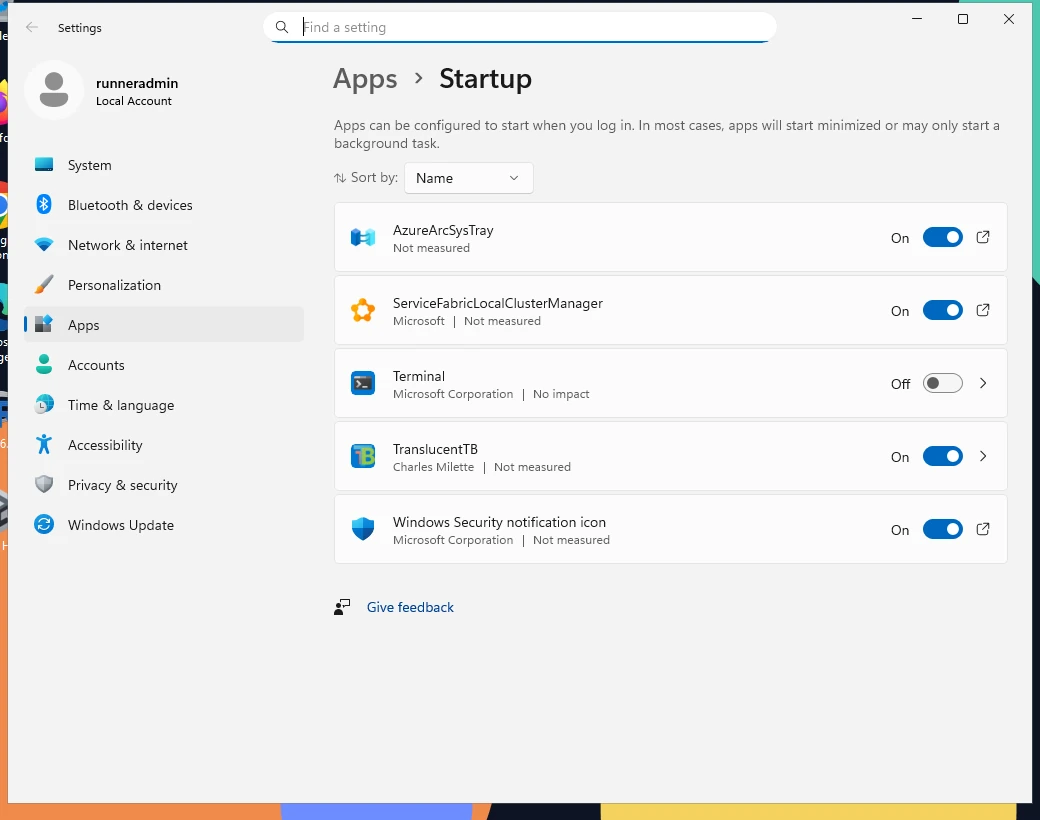
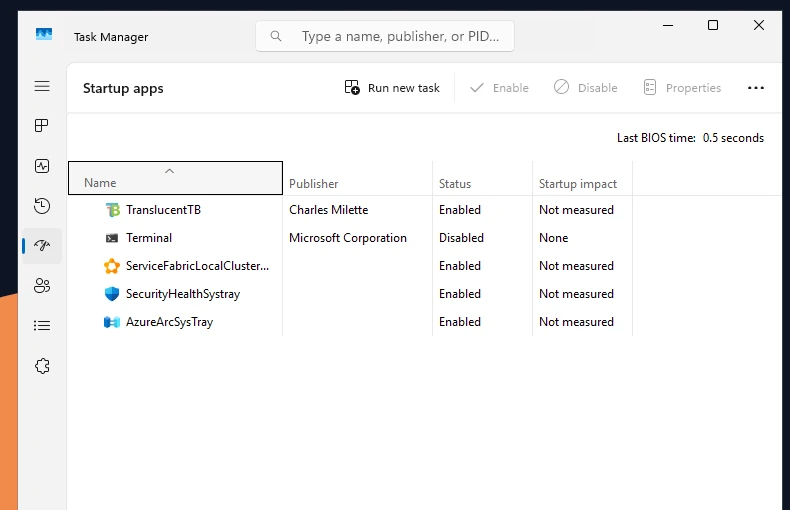
Two things worth noting. Open at boot was already checked after installing, because the package's startup task is enabled by default. And there is no About item in 2026.2: check your version in Windows Settings or with Get-AppxPackage *TranslucentTB*.
Memory, CPU and what loads into Explorer
The project describes TranslucentTB as using "a few MB of RAM". The memory that belongs only to TranslucentTB (private bytes) was 14 MB in both runs. The 65 MB working set also counts the shared Windows UI libraries the tray menu uses. CPU time did not move while the taskbar sat idle.
In Explorer we found ExplorerTAP.dll loaded from the package's TempState folder, not from the install folder. That is the copy_dlls behavior: TranslucentTB copies its helper there first because Explorer cannot load DLLs from WindowsApps. ExplorerHooks.dll was not loaded into Explorer, which matches the 2026.2 change "Avoid ExplorerHooks in modern XAML taskbar".
Uninstalling while it runs
Before uninstalling: TranslucentTB running with a red opaque taskbar.

Ten seconds after Remove-AppxPackage: Explorer was restarted (new process ID) and the taskbar is back to normal.

How these were captured
Captured October 29, 2026 on Windows build 26100 in our hands-on test; only cropped and resized. Settings used:
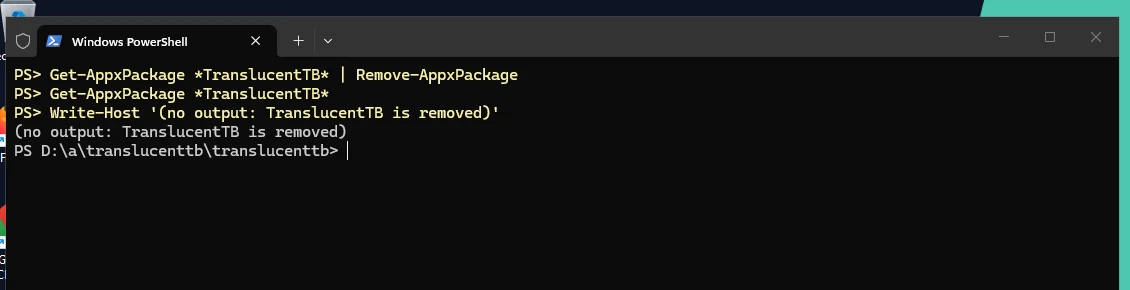
{ "desktop_appearance": { "accent": "opaque", "color": "#B42318FF" } }We ran Remove-AppxPackage with TranslucentTB running and the taskbar red. Explorer's process ID changed from 7220 to 3236 (it was restarted), the taskbar came back in Windows' own look, and the whole Packages\28017CharlesMilette.TranslucentTB_v826wp6bftszj folder, settings included, was gone. When TranslucentTB was not running at uninstall time (run 1), Explorer was not restarted.
The portable build
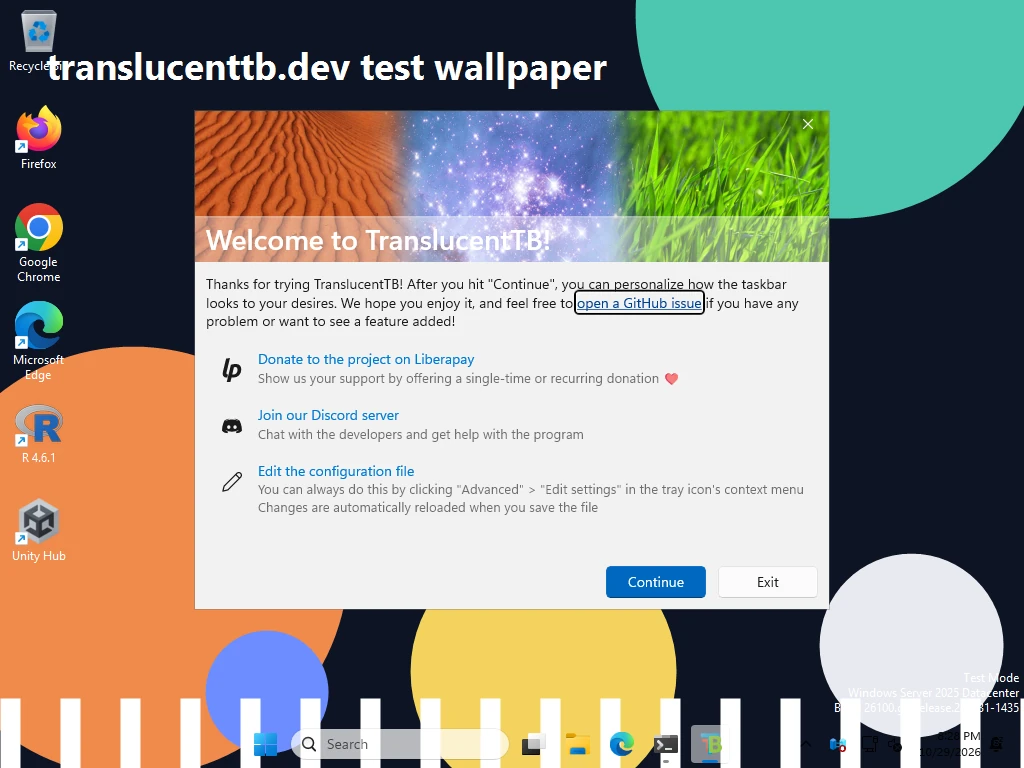
How this was captured
Captured October 29, 2026 on Windows build 26100 in our hands-on test; only cropped and resized.
The portable zip ran on build 26100 with the runtime packages already installed. Its settings.json appeared next to TranslucentTB.exe, and it copied its two helper DLLs to %TEMP%\TranslucentTB\.
Install, signature and uninstall, step by step
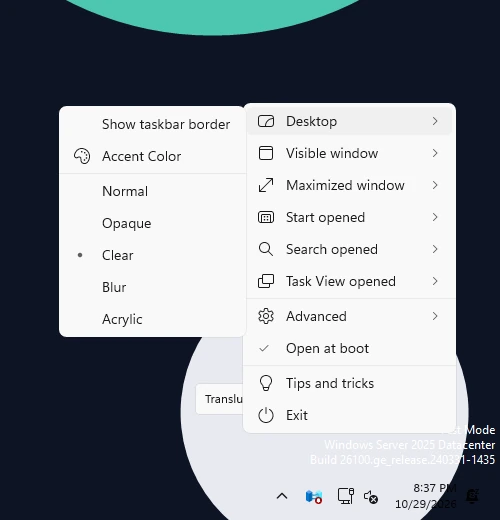
A third run repeated the everyday tasks the way a person would, at 1600 × 900: installing with winget, finding the tray icon, changing the look from the menu, checking the signature and uninstalling. These captures illustrate our guides.
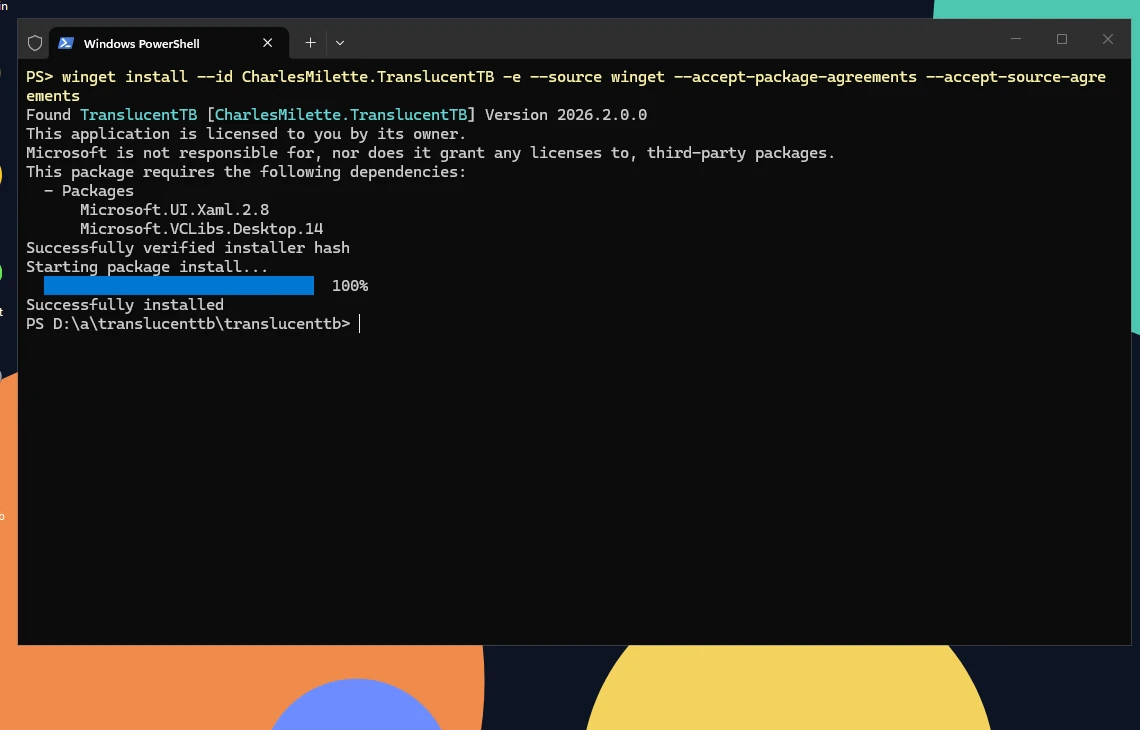
How this was captured
Captured October 29, 2026 on Windows build 26100 in our hands-on test; only cropped and resized.
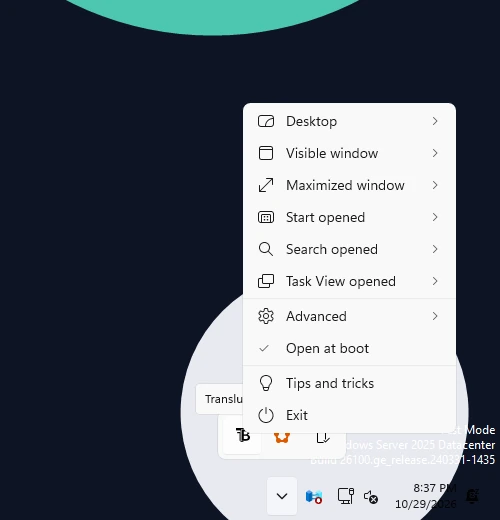
How this was captured
Captured October 29, 2026 on Windows build 26100 in our hands-on test; only cropped and resized.
How this was captured
Captured October 29, 2026 on Windows build 26100 in our hands-on test; only cropped and resized.
Step 5: after clicking Opaque, the taskbar turns solid at once (the default color is black).

After Exit from the tray menu: the taskbar is back to Windows' own look.

How these were captured
Captured October 29, 2026 on Windows build 26100 in our hands-on test; only cropped and resized. Settings used:
How this was captured
Captured October 29, 2026 on Windows build 26100 in our hands-on test; only cropped and resized.
How this was captured
Captured October 29, 2026 on Windows build 26100 in our hands-on test; only cropped and resized.
How this was captured
Captured October 29, 2026 on Windows build 26100 in our hands-on test; only cropped and resized.
How this was captured
Captured October 29, 2026 on Windows build 26100 in our hands-on test; only cropped and resized.
Raw files
Unedited output from the second run. Paths in them show the test account, runneradmin.
- settings.json written by TranslucentTB on first run
- TranslucentTB debug log
- SHA-256 hashes computed on Windows
- Authenticode signature of TranslucentTB.exe
- Installed package details and package folder listing
- Manifest extensions (ttb.exe alias, startup task)
- winget show CharlesMilette.TranslucentTB
- Measurements and test run log
- Who runs these tests and how we check facts: about translucenttb.dev. Spotted something we got wrong? Tell us.
- The test script: run.ps1 and lib.ps1
Questions
Why test on Windows Server instead of Windows 11?
Will you test new versions?
Can I reproduce these results?
run.ps1 in PowerShell on a test PC or virtual machine. It installs TranslucentTB, changes your wallpaper and taskbar settings and uninstalls TranslucentTB at the end, so do not run it on a PC you care about.Keep going
Something wrong or out of date? Email hello@translucenttb.dev and we will fix it.